
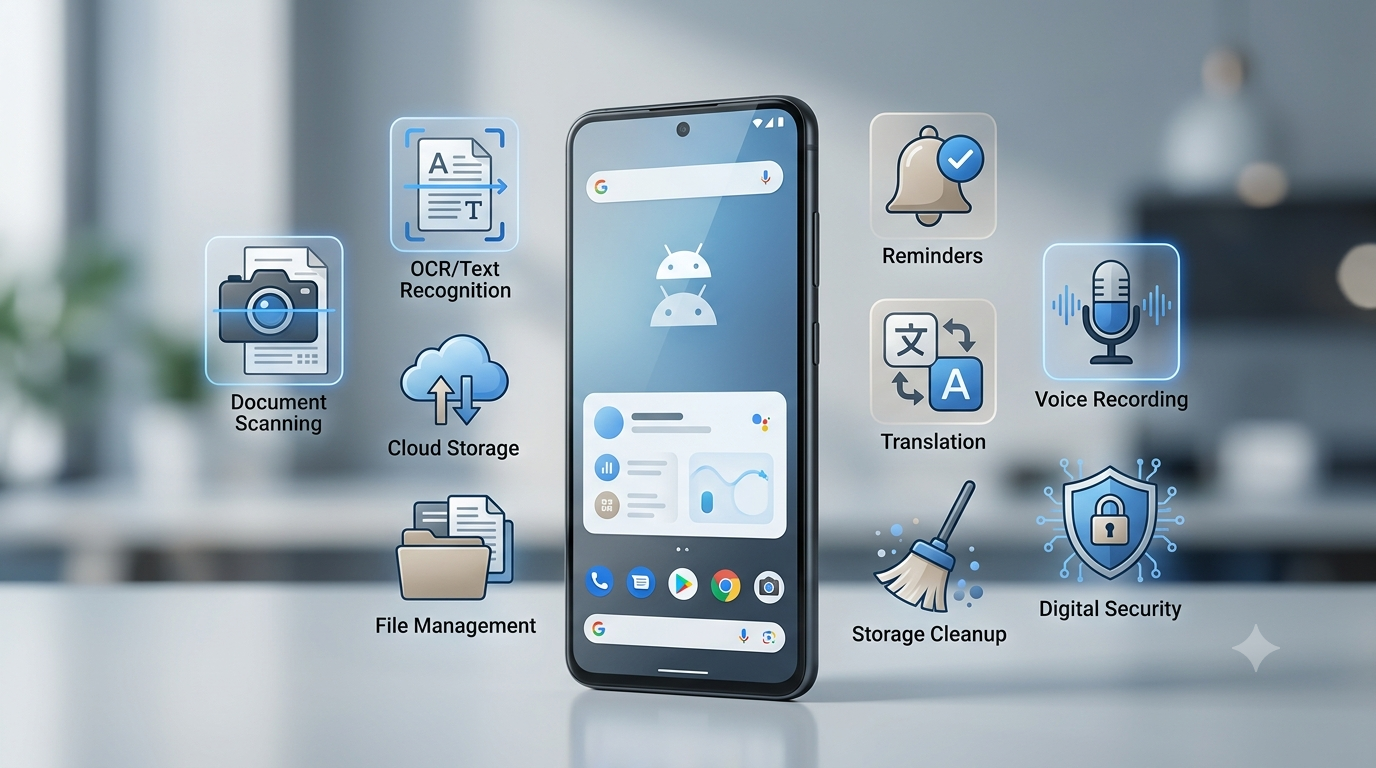
Our smartphones have become much more than devices for calls, messages, and social media. An Android phone can help with many small tasks that we deal with every day. You can scan a document, copy text from an image, share a large file, organize important documents, translate a sign, create reminders, manage storage, and protect your online accounts — all from the same device.
The problem is that the Google Play Store has millions of apps, and finding the right one for a particular task can sometimes take longer than doing the task itself.
That is why it makes more sense to choose apps based on the problem they solve rather than simply downloading every popular app you see.
In this guide, we are looking at 10 types of Android apps that can make common everyday tasks faster and easier. Some of the features mentioned below may already be available on your phone, so you should always check your built-in Android tools before installing another application.
1. Document Scanner Apps for Quick Paperwork
Paperwork is still part of everyday life. You may need to send a signed form, save a receipt, submit an application, scan an invoice, or keep a copy of an important document.
The problem is that not everyone has access to a physical scanner.
Your Android phone can solve this problem with a document scanning app or a built-in scanning feature. Instead of taking a normal photograph, these tools are designed to detect the edges of a document, correct the angle, improve readability, and save the result as a digital file.
Some scanner apps can also create PDFs from multiple pages, which is useful when a document contains several sheets.
When a scanner app is useful
You might use it for:
- School or college documents
- Office forms
- Receipts and invoices
- Printed applications
- Notes and study material
- Contracts and agreements
- Travel documents
- Business paperwork
For example, imagine that you are away from home and your office asks you to send a signed document. Instead of waiting until you reach a scanner, you can place the paper on a flat surface, scan it with your phone, create a PDF, and send it.
How to get a better scan
Good lighting makes a big difference. Put the document on a flat surface and avoid shadows falling across the page.
Also, check the final PDF before sending it. Make sure all pages are readable and that no part of the document has been accidentally cropped.
Privacy matters
Be careful when scanning sensitive documents such as identification papers, financial records, contracts, or personal information.
Before choosing a scanner app, check its permissions and privacy information. Android lets you review and change permissions for individual apps through Settings > Apps > Permissions.
If your phone already provides a reliable scanning feature, you may not need to install another app at all.
2. OCR Apps for Copying Text From Images
Have you ever received a screenshot containing an address, phone number, paragraph, or other information that you wanted to copy?
Typing everything manually can be annoying, especially when the image contains several lines of text.
This is where OCR, or Optical Character Recognition, becomes useful.
OCR technology can recognize text inside an image and convert it into selectable or editable text. Depending on the application, you may be able to copy the result, save it, translate it, or use it in another document.
Everyday uses of OCR
You can use OCR to:
- Copy text from screenshots
- Extract information from receipts
- Digitize printed notes
- Copy addresses from photographs
- Extract text from posters
- Convert printed information into editable notes
- Search text inside scanned documents
Students can also find OCR useful when they need to convert a small section of printed material into digital notes.
For example, instead of typing a paragraph from a printed page, you can capture a clear photograph and use an OCR feature to extract the text.
OCR is not always perfect
The quality of the original image matters.
OCR can make mistakes when:
- The image is blurry
- The text is very small
- Lighting is poor
- The page is tilted
- The font is unusual
- The image contains handwriting
For important information such as names, dates, addresses, account numbers, or prices, always compare the extracted text with the original image.
A few seconds of checking can prevent a surprisingly serious mistake.
3. File Compression Apps for Large Photos and PDFs
Modern smartphones can take high-resolution photographs and videos. While this is great for image quality, it can create another problem: large file sizes.
You might have a photo that is several megabytes in size or a PDF that is too large for an online form.
Instead of deleting the file or repeatedly trying to upload it, you can use a compression tool.
A compression app can reduce the size of an image or document while trying to keep enough quality for normal use.
When compression helps
File compression can be useful when:
- A website has an upload-size limit
- A PDF is too large to email
- You need to send several photographs
- Your phone storage is getting full
- You want to upload images faster
- Mobile data usage is a concern
For example, suppose an online application allows a maximum file size of 2 MB, but your photograph is 6 MB. Resizing or compressing the image may allow you to upload it without having to retake the photograph.
Don’t over-compress your files
Smaller does not always mean better.
If you compress a document too much, small text may become difficult to read. If you compress a photograph aggressively, it can develop visible artifacts.
For important documents, always open the compressed file and check its quality before deleting the original.
Be careful with online compression services
Some compression tools work by uploading your file to a server.
That may be perfectly acceptable for an ordinary photograph, but you should think twice before uploading confidential documents or personal information to an unknown service.
For sensitive files, a reputable app or an offline option can be a better choice.
4. File Manager Apps for Finding and Organizing Your Files
As you use your phone, the number of files can grow quickly.
Downloads, screenshots, documents, videos, images, PDFs, and files received through messaging apps can end up scattered across different folders.
A good file manager can make this easier to control.
Instead of searching through your gallery or Downloads folder every time you need something, you can organize files into folders based on their purpose.
For example:
Documents
- College
- Work
- Bills
- Receipts
- Personal
Media
- Photos
- Videos
- Screenshots
Projects
- Website
- Designs
- Documents
This simple organization can save a lot of time.
What a file manager can help you do
Depending on the app, you may be able to:
- Move files
- Rename files
- Delete unwanted files
- Create folders
- Find large files
- Compress files
- Share files
- Manage downloads
- Browse internal storage
Files by Google, for example, provides file-management features and tools for managing storage, sharing files, backing up files, and more.
Don’t give unnecessary access
File-management applications naturally need access to files, but you should still understand what permissions an app is requesting.
Google’s Android guidance explains that permissions can include access to files, photos and videos, contacts, camera, microphone, location, and other device features.
If an app is asking for permissions that have nothing to do with its main purpose, investigate before granting them.
5. Cloud Storage Apps for Sharing and Backing Up Files
Another common problem is sending large files to someone.
Messaging applications can have limitations, especially when you want to share several large photographs, videos, project folders, or documents.
Cloud storage provides another option.
You upload a file and then share a link with the other person. Depending on the service, you can also control who can access the file.
Common uses
Cloud storage is useful for:
- College projects
- Work presentations
- Large videos
- Photo collections
- PDF documents
- Website files
- Backup copies
- Important personal files
It also becomes useful when changing phones. Instead of keeping everything on one physical device, you can keep selected files backed up online.
Be careful with sharing permissions
One of the easiest mistakes is accidentally making a private file accessible to anyone with a link.
Before sharing a document, check the access setting.
If the file contains private information, use restricted access whenever possible instead of creating a completely public link.
Don’t use cloud storage as your only backup
Cloud storage is helpful, but important files should ideally have more than one backup.
For example, an important family document could exist on your phone and in a trusted backup location.
The goal is to avoid a situation where one damaged phone or accidentally deleted file causes permanent data loss.
6. Reminder and Task Apps for Things You Keep Forgetting
Not every productivity problem requires a complicated system.
Sometimes you simply need to remember one small task.
Maybe you need to:
- Pay a bill
- Submit an assignment
- Call someone
- Renew a subscription
- Take medicine
- Attend an appointment
- Buy something
- Send an important email
A reminder or task app can handle these situations.
Android users can choose from dedicated task applications, calendar applications, or built-in reminder features.
The important part is how you write the reminder
Compare these two reminders:
Bad:
“Bill”
Better:
“Pay electricity bill – September 12 – before 8 PM”
The second reminder gives you the information you actually need.
You can also create recurring reminders.
For example:
- Pay rent — monthly
- Check website backup — weekly
- Renew subscription — yearly
- Review expenses — every Sunday
This can reduce the number of small things you have to keep in your head.
Don’t create too many reminders
If your phone sends dozens of notifications every day, you may eventually start ignoring them.
Create reminders for tasks that genuinely matter.
The goal is not to turn every activity into a notification. The goal is to prevent important tasks from being forgotten.
7. Translation Apps for Travel and Everyday Situations
Language barriers can make simple situations surprisingly difficult.
You might be travelling to another country, reading a restaurant menu, looking at a road sign, or trying to understand instructions written in another language.
Translation apps can help by converting text from one language into another.
Some tools also support camera-based translation, meaning you can point your phone at printed text instead of typing everything manually.
Where translation apps can help
You can use them for:
- Restaurant menus
- Road signs
- Product packaging
- Short notices
- Travel information
- Basic conversations
- Printed instructions
- Websites and messages
Camera-based translation can be especially convenient while travelling.
Instead of typing an entire menu into a translation box, you can use the camera feature where supported.
Remember that translations can be wrong
Translation technology has improved significantly, but it is not perfect.
Short and simple sentences are generally easier to translate than complicated legal, technical, or culturally specific language.
Never depend entirely on machine translation for an important legal, medical, or official document.
When accuracy matters, verify the information through a reliable source or a qualified human translator.
8. Voice Recorder Apps for Quick Notes and Ideas
Sometimes speaking is faster than typing.
You may suddenly get an idea while travelling, need to remember something, want to create a quick voice note, or need to record information for your own reference.
A voice recorder can turn your smartphone into a portable audio notebook.
Many Android phones already include a voice recorder, so check your phone before installing another one.
Useful situations
A voice recorder can be helpful for:
- Personal reminders
- Content ideas
- Study notes
- Interviews with permission
- Meeting notes
- Project ideas
- Quick thoughts
- Work-related recordings
For example, if you suddenly think of a good article idea while travelling, you can record a 20-second voice note instead of assuming you will remember it later.
Keep recordings organized
If you record frequently, give each file a useful name.
Instead of:
Recording 014
try:
Website Article Ideas – September 2026
It will be much easier to find later.
Respect privacy
Do not secretly record people simply because your phone makes recording easy.
If another person is being recorded, follow the applicable consent and privacy rules in your location.
Technology makes recording simple, but that does not remove the responsibility to use it appropriately.
9. Storage Cleaner and File Management Apps
Running out of storage is one of the most frustrating smartphone problems.
You may see a warning that your storage is almost full just when you want to download something important or record a video.
Before deleting random files, find out what is actually consuming your storage.
Large videos are often a major reason, but they are not the only one.
You may also have:
- Duplicate photographs
- Old screenshots
- Downloaded videos
- Unused applications
- Large documents
- Messaging-app media
- Offline music
- Old installation files
A reliable file-management or storage tool can help you identify these files.
Start with large files
If you need to free up space quickly, check which files are taking up the most storage.
Deleting a few large videos may free more space than deleting hundreds of small images.
Be careful with “phone booster” apps
You may see applications promising to make your phone dramatically faster by cleaning RAM or performing constant background optimization.
Do not install such apps simply because an advertisement promises a faster phone.
Modern Android devices already manage memory and applications themselves.
Focus on genuine storage problems instead.
Always check before deleting
A cleanup tool may identify an old file as unnecessary, but that does not mean it has no value.
Open important files before deleting them and keep backups of anything you cannot replace.
10. Password Manager Apps for Better Account Security
Your Android phone may give you access to dozens of online accounts.
Think about your email, social media, shopping accounts, cloud storage, websites, work services, and other platforms.
If you use the same password everywhere, one compromised account can potentially put other accounts at risk.
A password manager can help you create and store different passwords for different services.
Instead of remembering every password yourself, you generally need to remember one main password or use the security method supported by your password manager.
A better password strategy
Avoid using simple passwords based on:
- Your name
- Birthday
- Phone number
- Favorite team
- Common words
- Simple number combinations
More importantly, avoid reusing the same password across important accounts.
A password manager can make unique passwords much easier to manage.
Add two-factor authentication
Where available, enable two-factor authentication for important accounts.
That gives your account another layer of protection beyond the password.
For example, even if someone obtains your password, they may still need another verification method to access the account.
Protect the password manager itself
A password manager contains valuable information, so the security of the app and your main account matters.
Use a strong master password and keep your phone protected with a screen lock.
You May Already Have Some of These Features
Before downloading ten new apps, take a look at the apps already installed on your phone.
Modern Android phones can provide many useful features without additional downloads.
Depending on your device and Android version, you may already have:
- A document scanner
- QR code scanner
- File manager
- Voice recorder
- Calculator
- Calendar
- Notes
- Screen recorder
- Password manager
- Translation tools
- Backup features
- Device-finding tools
This is important because installing another app means giving another application some level of access to your device.
If the built-in tool does the job well, using it can be simpler.
How to Choose Safe Android Apps
Finding an app is easy. Finding a trustworthy app requires a little more attention.
Check the Developer
Look at the developer name and other information on the app’s listing.
An established developer with a clear presence and support information is generally easier to evaluate than an application from an unknown source with almost no information.
Read Recent Reviews
Do not look only at the star rating.
Read some recent reviews and look for repeated complaints.
Users may mention:
- Too many advertisements
- Unexpected subscriptions
- Crashes
- Battery problems
- Privacy concerns
- Features that stopped working
- Difficult cancellation processes
Reviews are not perfect, but they can reveal problems that are not obvious from the app description.
Check Permissions
An app should generally request permissions that make sense for its functionality.
For example, a scanner may need camera access. A voice recorder needs microphone access. A map application may need location access.
But you should question permissions that appear unrelated to what the application actually does.
Android allows you to review and change permissions after installation.
Check the Data Safety Information
Google Play provides a Data Safety section intended to give users information about how developers say their apps collect, share, and handle data. Google also notes that the permissions list and Data Safety section are not exactly the same thing and can differ for various technical reasons.
For applications handling personal information, this is worth checking.
Keep Google Play Protect Enabled
Google Play Protect checks apps for potentially harmful behavior and can warn users about harmful applications. It can also scan applications installed from outside Google Play.
Google recommends keeping Play Protect enabled.
Why You Should Be Careful With Apps From Unknown Websites
Sometimes people search the internet for a modified version of a paid application because they want additional features for free.
This can be risky.
Google specifically warns that downloading applications from unknown sources can put your device and personal information at risk.
An unofficial APK may contain unwanted software, excessive permissions, or malicious code.
That does not mean every app installed outside Google Play is automatically dangerous, but you should understand the additional risk before installing it.
For most users, downloading apps through Google Play and keeping Play Protect enabled is the safer approach.
A Simple Android Setup for Everyday Life
You do not need 50 applications to make your phone useful.
A practical setup could look something like this:
For documents
Use a trusted scanner or your phone’s built-in scanning feature.
For files
Use a reliable file manager to organize downloads, documents, and media.
For reminders
Use a calendar or task application.
For translation
Keep a trusted translation tool available when travelling or dealing with another language.
For security
Use strong, unique passwords and enable two-factor authentication on important accounts.
For backups
Keep important photographs and documents backed up in a trusted location.
For storage
Regularly remove unnecessary large files instead of installing multiple cleaner applications.
This approach is much better than downloading an application every time you encounter a small problem.
7 Small Android Habits That Can Save You Time
Apps are useful, but your habits matter just as much.
Here are a few simple things you can do:
1. Organize your Downloads folder regularly.
Delete files you no longer need and move important ones into proper folders.
2. Back up important photographs.
A phone can be lost or damaged. Do not keep your only copy of important memories on the device.
3. Review app permissions occasionally.
Remove access that an app no longer needs. Android provides settings for managing permissions.
4. Keep your applications updated.
Updates can contain bug fixes, security improvements, and new features.
5. Remove applications you no longer use.
There is little reason to keep dozens of unused apps installed.
6. Keep your phone’s screen lock enabled.
A screen lock provides an important basic layer of protection.
7. Think before installing an app.
Ask yourself whether the app actually solves a problem you have.
Frequently Asked Questions
Do I need all 10 types of Android apps?
No.
The purpose of this list is to show different ways Android apps can solve everyday problems. You should only install the tools that you actually need.
If your phone already provides a feature, there may be no reason to install another app.
Are Android apps safe to install?
Not every app is automatically safe.
Check the developer, reviews, permissions, Data Safety information, and source before installing an application.
Google Play Protect also provides protection against potentially harmful apps.
Should I download apps from websites outside Google Play?
For most users, Google Play is the simpler and safer option.
Google warns that applications from unknown sources can put your device and personal information at risk.
If you install an APK from another source, make sure you understand where it came from and what you are installing.
Can I use built-in Android tools instead of separate apps?
Yes.
In many cases, built-in Android or manufacturer features can handle basic scanning, file management, recording, reminders, security, and storage tasks.
Check your phone first before installing another application.
How often should I check app permissions?
There is no strict schedule that everyone needs to follow.
However, reviewing permissions occasionally is a good privacy habit, especially after installing many new applications or when an app changes how it works.
Android allows you to manage permissions for individual applications through the Settings menu.
Final Thoughts
The best Android apps are not necessarily the ones with millions of downloads or the most impressive feature lists.
A truly useful app is one that solves a problem you actually have.
A document scanner can save you a trip to the office. OCR can save you from typing text manually. A file manager can help you find an important document. Cloud storage can make large-file sharing easier. Reminders can prevent small tasks from being forgotten. Translation tools can make travelling easier, while password managers can help you maintain better account security.
At the same time, more apps do not always mean a better smartphone experience.
Before installing anything, check whether your Android phone already has the feature you need. If you still need an additional application, choose one from a reputable source, read its permissions, check its privacy information, and avoid giving unnecessary access to personal data.
Your smartphone is already a powerful tool. With a few carefully chosen applications and some simple habits, you can make everyday tasks faster, easier, and more organized without filling your phone with dozens of unnecessary apps.