
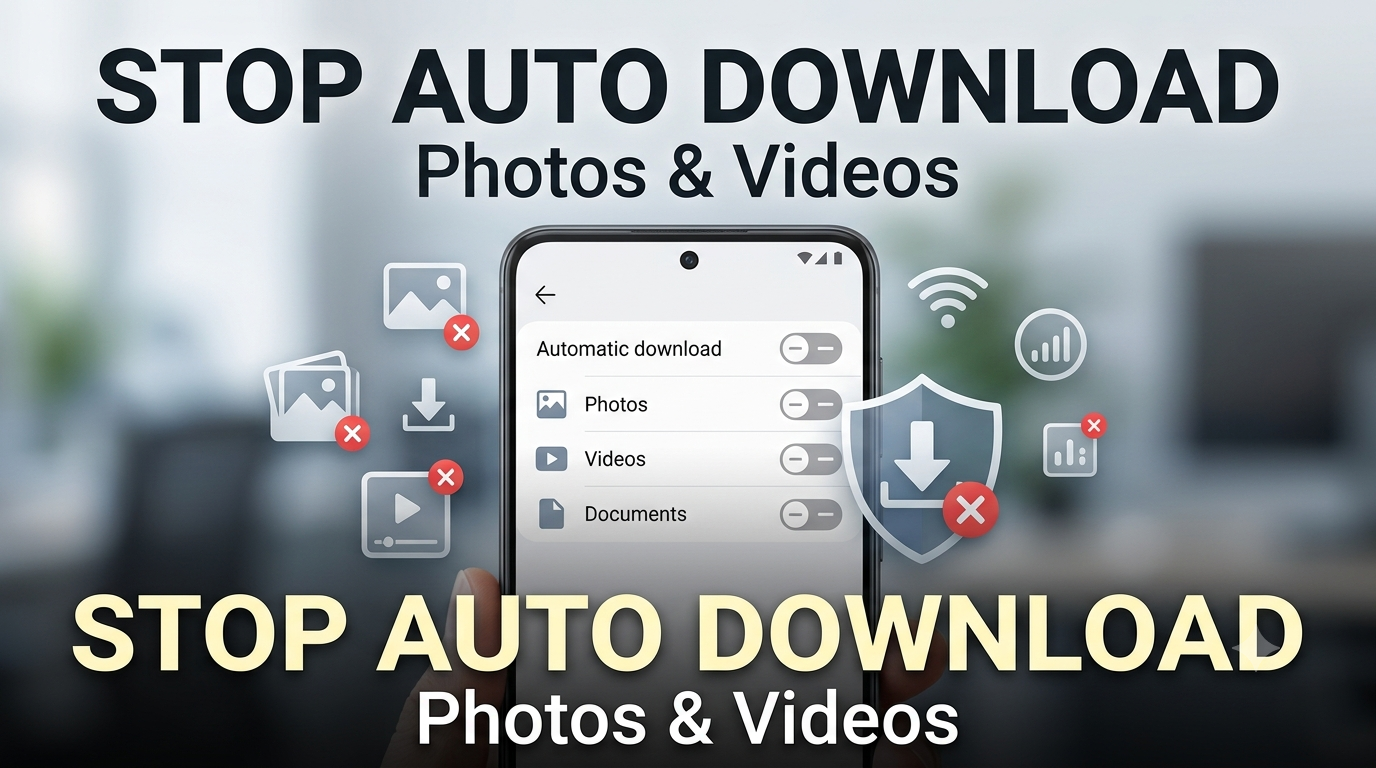
Have you ever opened your phone’s Gallery and found hundreds of photos, videos, memes, screenshots, and random files that you never wanted to save?
This usually happens because some apps automatically download media when you receive it.
Messaging apps are one of the biggest reasons. A busy WhatsApp group can send dozens of photos and videos every day. Telegram channels can do the same. Social media apps can also save media or downloads depending on how you use them.
The problem is not just the number of files.
Unwanted downloads can use your phone storage, mobile data, Wi-Fi bandwidth, and your time. They can also make your Gallery difficult to manage.
The good news is that you do not need to stop using these apps.
You can simply change a few settings so that photos and videos are downloaded only when you actually want them.
This guide explains how to control automatic downloads on Android, WhatsApp, Telegram, and other apps without affecting the files you choose to download manually.
First, Understand What “Auto-Download” Actually Means
There are two different things that often get confused.
Automatic download means an app downloads a media file to your device without you manually asking for that particular file.
Manual download means you tap the photo, video, or file yourself when you want to download it.
For example, imagine you are in a WhatsApp group where people send 50 photos every day.
If automatic downloads are enabled, many of those files can be downloaded even if you never open them.
If you disable automatic downloads, you can still open a message and download the media you actually want.
So turning off auto-download does not mean you can no longer receive photos or videos.
It simply gives you more control over when they are downloaded.
Why You May Want to Turn Off Automatic Downloads
There are several practical reasons to change these settings.
Your storage keeps filling up
Large videos can take hundreds of megabytes or more.
If several groups and channels are active, unwanted media can accumulate quickly.
Your mobile data gets used unnecessarily
If media is allowed to download over cellular data, large videos can consume your data allowance without you intentionally downloading them.
WhatsApp, for example, provides separate choices for automatic downloads over mobile data, Wi-Fi, and roaming.
Your Gallery becomes cluttered
You may end up with:
- Memes
- Forwarded images
- Random videos
- Promotional media
- Duplicate pictures
- Group photos
- Unwanted screenshots
Finding your own photos later becomes harder.
You have many active groups or channels
The more chats you follow, the more media can arrive.
You do not necessarily need to leave those groups. Changing the download settings can be enough.
The Simple Setup Most People Can Use
If you want a simple approach, use this basic rule:
| Media | Mobile Data | Wi-Fi |
|---|---|---|
| Photos | Manual | Manual or selected |
| Videos | Manual | Manual or selected |
| Documents | Manual | Manual |
| Voice messages | As needed | As needed |
There is no single setting that is perfect for everyone.
Someone with unlimited Wi-Fi and lots of storage may prefer different settings from someone with limited mobile data and a 64 GB phone.
The important thing is to stop downloading files that you never use.
WhatsApp: Stop Photos and Videos From Downloading Automatically
WhatsApp provides built-in controls for automatic media downloads.
On supported versions, open WhatsApp and go to:
WhatsApp → Settings → Storage and data → Media auto-download
The exact wording can vary slightly depending on the platform and app version.
WhatsApp lets you configure automatic downloads for different types of media and different connection types.
You may see options related to:
- Mobile data
- Wi-Fi
- Roaming
You can decide which media types should download automatically.
A Practical WhatsApp Setup
For many users, a simple setup is:
When using mobile data: Disable automatic photo and video downloads.
When connected to Wi-Fi: Allow only the media you actually want automatically.
When roaming: Keep automatic media downloads restricted.
This gives you better control when you are away from your normal Wi-Fi connection.
If you want maximum control, set media downloads to Never where available.
You can still manually download a photo or video when you actually want it.
What About Voice Messages?
You may want to treat voice messages differently.
Voice messages are usually much smaller than videos, and automatically downloading them may be useful if you frequently listen to messages.
Therefore, you do not necessarily have to disable everything.
The goal is to control the types of media that create the biggest problem for you.
WhatsApp Media Can Still Appear in Your Gallery
There are two related settings that people often confuse.
One controls whether media is automatically downloaded.
Another can control whether downloaded media is shown in your phone’s Gallery.
If your main problem is Gallery clutter rather than storage, look for WhatsApp’s media visibility or related chat/media settings in your app version.
This distinction matters.
You might want to receive a photo inside WhatsApp but not have every received image appear among your normal camera pictures.
Telegram: Control Automatic Media Downloads
Telegram also provides automatic media download controls.
Depending on the current Android version of the app, look under:
Telegram → Settings → Data and Storage
You can find controls related to automatic media downloads for different connection types, including mobile data, Wi-Fi, and roaming. Telegram’s Android settings also provide controls for media types such as photos, videos, and files.
You can choose how much media Telegram should automatically download.
For example, you may decide that:
- Photos can download automatically on Wi-Fi.
- Videos should require manual downloading.
- Large files should never download automatically.
- Mobile-data downloads should be restricted.
This can be particularly useful if you follow large Telegram groups or channels.
Don’t Forget About Large Telegram Files
Telegram is commonly used for sharing large files and videos.
If automatic downloading is enabled too broadly, your phone can accumulate media much faster than you expect.
If you frequently receive large videos or files, review the automatic download settings and choose a more restrictive configuration.
You can still download an individual file when you actually need it.
This is often a better approach than allowing every file to download automatically.
What About Other Messaging Apps?
WhatsApp and Telegram are not the only apps that can download media.
Depending on the apps installed on your phone, you may also receive or save media through:
- Facebook Messenger
- Discord
- Signal
- Other messaging platforms
- File-sharing applications
The setting names are not identical across apps.
Look for options containing words such as:
Auto-download
Automatic downloads
Media download
Data usage
Storage and data
Save to gallery
Save incoming media
If an app does not provide an automatic-download option, check its storage, media, or data settings.
Android Can Also Control What Apps Are Allowed to Access
There is another layer of control that is separate from automatic downloading.
Android lets you manage app permissions.
For example, you can review whether an app has permission to access photos and videos from your device.
On Android, you can generally go to:
Settings → Apps → Select the app → Permissions
The exact menu can vary between phones.
Google’s Android guidance confirms that app permissions can be changed individually and that Photos and videos is one of the permission categories available on supported Android versions.
However, do not confuse permissions with auto-download settings.
Permission control
Controls whether an app can access certain information or content on your device.
Auto-download control
Controls whether the app automatically downloads incoming media.
They solve different problems.
A Better Setup for Limited Mobile Data
If your mobile data is limited, automatic video downloads are one of the first things worth reviewing.
Videos are generally much larger than text messages and many images.
A simple approach is:
Mobile data → Manual downloads
Wi-Fi → Allow selected media if useful
Roaming → Keep automatic downloads restricted
This means you are less likely to spend mobile data on media that you never intended to download.
You can still manually download an important photo, document, or video when needed.
A Better Setup for a 64 GB Phone
Storage becomes more important when your phone has limited capacity.
If you have a 64 GB phone and regularly receive large videos, automatic downloads can consume a noticeable amount of space over time.
For such devices, consider making automatic video downloads more restrictive.
You can also periodically review:
- WhatsApp media
- Telegram media
- Downloads
- Screen recordings
- Offline videos
- Duplicate files
This works better than waiting until the phone displays a storage warning.
A Better Setup for a 128 GB or 256 GB Phone
More storage gives you more room, but unlimited storage does not mean unnecessary files are harmless.
Even a 256 GB phone can eventually become full if large videos and files are downloaded continuously.
You may not need to disable every automatic download.
Instead, identify the apps that send the most unwanted media and change their settings first.
For example:
WhatsApp groups → Restrict videos
Telegram channels → Restrict large media
Other apps → Review their media settings
This gives you control without making every app inconvenient to use.
What Happens After You Turn Off Auto-Download?
You may notice that some photos or videos no longer appear immediately.
That is normal.
When you receive a media file, the app may show a download button or another indication that the file has not been downloaded yet.
If you want the file, simply tap it.
The app can then download it according to its normal behavior and your current internet connection.
The advantage is that you decide which files deserve storage space.
Turning Off Auto-Download Does Not Delete Existing Files
This is important.
Changing an auto-download setting normally affects future downloads.
It does not automatically remove the photos and videos that are already stored on your phone.
If your phone is already full of unwanted media, you may need to clean the existing files separately.
You can check your Gallery or file manager and remove media that you no longer need.
For important files, make sure you have another copy before deleting them.
What If Your Gallery Is Already Full of Unwanted Media?
Changing the setting will help prevent the problem from continuing, but it will not clean the files that are already there.
Use this simple process:
First, identify the source
Think about which app sends you the most unwanted media.
Is it WhatsApp?
Telegram?
Another messaging app?
Next, change its download settings
Restrict automatic downloads for photos, videos, or files.
Then, clean existing media
Check the relevant app’s storage tools or your phone’s file manager.
Finally, check the Gallery
Remove unnecessary media that has already been saved.
This gives you both parts of the solution:
Stop new unwanted downloads + clean the old ones.
Don’t Turn Off Everything Without Thinking
Disabling every type of automatic download may sound like the safest option, but it can also become inconvenient.
For example, if you frequently receive important documents or voice messages, you may prefer to keep some downloads enabled.
Instead of using the most restrictive setting everywhere, think about your actual usage.
Ask yourself:
- Which app sends the most unwanted media?
- Do I have limited mobile data?
- Is phone storage frequently full?
- Do I need automatic downloads for work or college?
- Do I use many WhatsApp groups?
- Do I follow large Telegram channels?
Your answers will help you choose the right settings.
Three Useful Setups You Can Copy
Setup A: Save Storage
Best for phones that frequently run out of space.
Photos: Manual
Videos: Manual
Large files: Manual
Mobile data: Restrictive
Roaming: Restrictive
This gives you maximum control over incoming media.
Setup B: Save Mobile Data
Best for users with limited mobile data.
Mobile data: Restrict photos and videos
Wi-Fi: Allow selected downloads
Roaming: Restrict downloads
This lets Wi-Fi handle most automatic media activity.
Setup C: Balanced
Best if you want convenience without downloading everything.
Photos: Automatic on Wi-Fi
Videos: Manual
Large files: Manual
Mobile data: Restrictive
Roaming: Restrictive
This provides a reasonable balance between convenience, data usage, and storage.
One More Setting Worth Checking: Automatic Media Saving
Some apps have settings that determine whether received media is saved to your device’s photo library or Gallery.
This is different from downloading.
For example, an app may download a file for use inside the app but offer a separate option for saving it to your normal photo library.
If your biggest complaint is:
“My Gallery is full of random WhatsApp photos.”
Then look for a media visibility, save to gallery, or similar setting in addition to the auto-download option.
The exact name and location depend on the app and version.
How to Find the Apps Creating the Problem
If you do not know which app is responsible, look at your recent Gallery files.
Check the folders or albums where your phone groups media.
You may notice that a large percentage of unwanted files are coming from one application.
Once you identify the source, you do not need to change every setting on your phone.
Just fix the app causing the problem.
This is often the fastest solution.
Don’t Ignore Storage After Changing the Settings
After changing automatic-download settings, check your storage again after a few weeks.
You should notice whether the problem has improved.
If storage continues to disappear quickly, look at:
- Large videos
- Installed games
- Offline downloads
- Screen recordings
- Downloads folder
- Duplicate photos
- App cache
- Other messaging apps
Auto-download is only one possible reason for low storage.
Quick Checklist
Before you finish, check these settings:
- [ ] WhatsApp mobile-data downloads
- [ ] WhatsApp Wi-Fi downloads
- [ ] WhatsApp roaming downloads
- [ ] WhatsApp media visibility if needed
- [ ] Telegram mobile-data downloads
- [ ] Telegram Wi-Fi downloads
- [ ] Telegram roaming downloads
- [ ] Large video downloads
- [ ] Other messaging apps
- [ ] Gallery folders containing unwanted media
- [ ] Phone storage usage
You do not have to change every option.
Focus on the ones causing problems for you.
Frequently Asked Questions
Will turning off auto-download stop me from receiving photos?
No. In apps that support manual downloading, you can normally tap a received photo or video when you want to download it. The change mainly stops the automatic download behavior.
Will turning off auto-download delete my existing photos?
No. Changing the setting does not normally remove media that is already stored on your phone. Existing files need to be cleaned separately.
Does automatic downloading use mobile data?
It can, depending on the app’s settings. WhatsApp specifically provides separate controls for mobile data, Wi-Fi, and roaming.
Can I allow photos but block videos?
In apps that provide separate media controls, yes. WhatsApp and Telegram provide controls for different media types, although the exact options can vary by app version and platform.
Why are random WhatsApp photos appearing in my Gallery?
This can happen when media is downloaded and the app’s media visibility or saving behavior allows it to appear in your photo library. Review both the auto-download and media-visibility settings.
Should I disable automatic downloads on Wi-Fi too?
If storage is your main concern, restricting Wi-Fi downloads can help because Wi-Fi does not prevent files from taking up phone storage. If storage is not a concern, you may prefer to allow selected media on Wi-Fi for convenience.
What should I do if my phone storage is already full?
First identify which category is consuming the most space. Then clean unnecessary videos, downloads, screenshots, messaging media, offline files, and unused apps. Changing auto-download settings will help prevent the problem from returning but will not remove existing files.
Final Thoughts
Automatic downloads are convenient, but they can also make your phone messy without you noticing.
You do not need to stop using WhatsApp, Telegram, or other messaging apps to solve the problem.
Instead, decide what your phone should download automatically and what should wait until you tap it yourself.
For most people, restricting automatic video downloads is a good starting point. If storage is limited, you can also restrict large files and unnecessary media on both mobile data and Wi-Fi.
Once these settings are adjusted, your phone becomes easier to manage because you choose what gets downloaded instead of allowing every incoming photo and video to take up space automatically.