
Your phone does not suddenly run out of storage for no reason.
Over time, small files, downloaded videos, app data, screenshots, duplicate photos, offline content, and old documents quietly build up. Eventually, you may see a notification saying that your storage is almost full.
The natural reaction is to open the Gallery and start deleting photos.
But that is not always the best solution.
If your phone contains important family photos, college documents, work files, videos, or other personal data, you should not delete them just to create a few gigabytes of free space.
Instead, the first step should be finding where your storage is actually going.
This guide explains a safer way to clean your phone. You will learn what you can remove, what you should keep, where hidden storage is commonly used, and how to free up space without losing important files.
Start With the Storage Screen
Before touching any files, check your phone’s storage information.
On many Android phones, you can find it by opening:
Settings → Storage
The exact name and location can vary between Samsung, Xiaomi, OnePlus, Motorola, Realme, Vivo, Oppo, Google Pixel, and other phones.
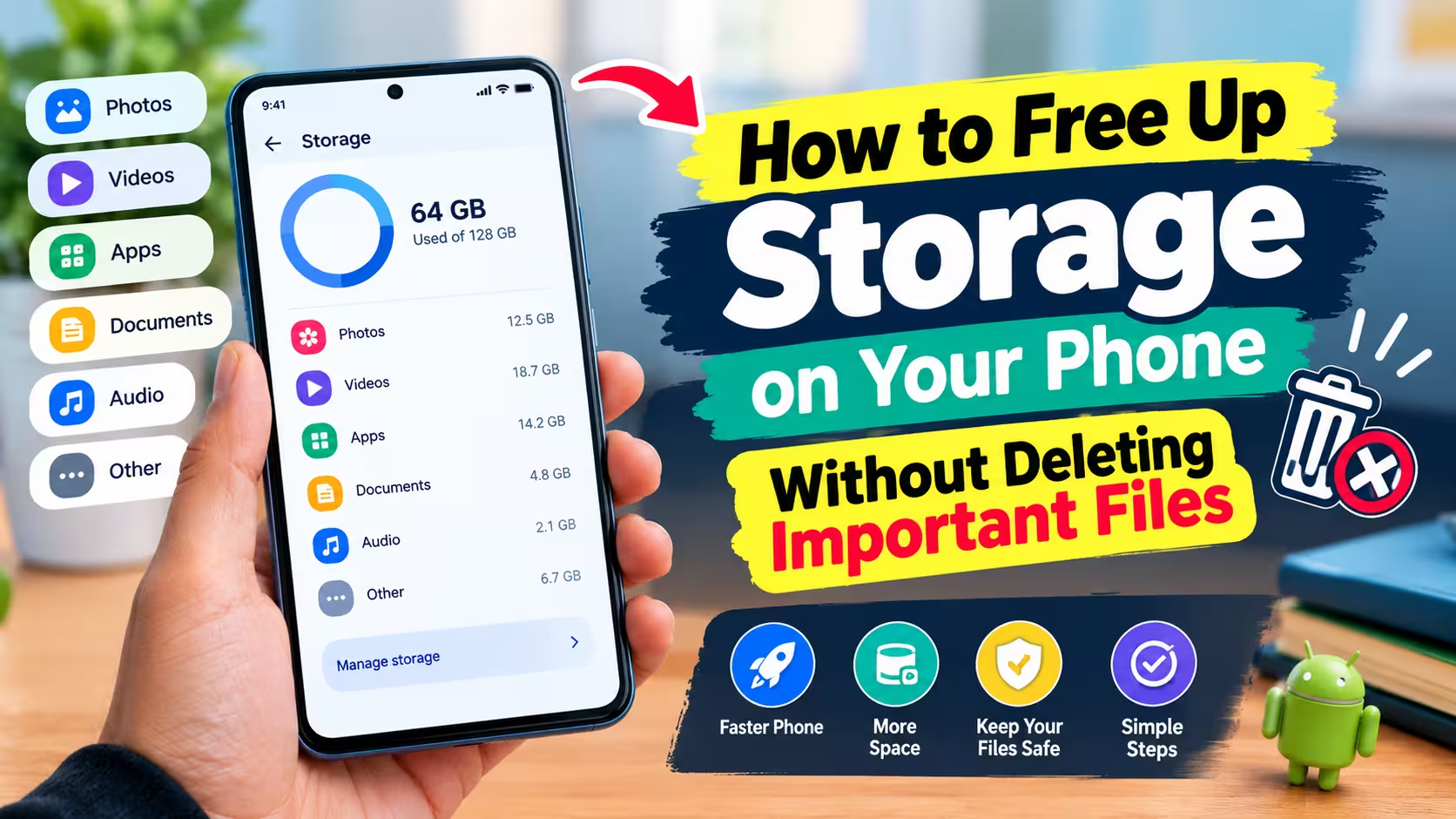
You will normally see a breakdown showing categories such as:
| Storage Category | Examples |
|---|---|
| Apps | Installed apps and games |
| Photos | Camera pictures and saved images |
| Videos | Camera videos, recordings and downloads |
| Audio | Music and recordings |
| Documents | PDFs, Word files and other documents |
| System | Android and system files |
| Other | Various app and temporary files |
Do not start deleting things yet.
Look at which category is taking the most space.
For example, if your phone has 128 GB of storage and videos are using 45 GB, deleting ten small documents will not make much difference. You should investigate your video folders first.
This makes the cleanup faster and reduces the chance of accidentally deleting something important.
Your Downloads Folder May Be the Easiest Place to Start
Many people download something once and completely forget about it.
The Downloads folder can contain files from months or even years ago.
You might find:
- Old PDFs
- Images
- Videos
- ZIP files
- APK files
- Wallpapers
- Documents
- Installation files
- Files downloaded from websites
Open your phone’s file manager and look for Downloads.
If possible, sort the files by size.
Large files are worth checking first.
For example, an old 1.5 GB video can be removed much more effectively than dozens of tiny images.
But do not delete a file just because you do not remember downloading it. Open or identify it first and make sure it is no longer needed.
WhatsApp Can Quietly Become a Storage Problem
If you use WhatsApp regularly, check its storage usage before deleting personal photos from your Gallery.
Group chats are especially capable of filling storage because people continuously share:
- Videos
- Photos
- GIFs
- Documents
- Voice messages
- Stickers
- Forwarded media
WhatsApp includes a storage-management area that lets you review large files and other media.
Instead of deleting an entire conversation, look for unnecessary large files.
You may discover that a few old videos are taking several gigabytes.
This is a much better place to start than deleting your entire camera gallery.
A useful habit
After cleaning WhatsApp, review your media settings so that unnecessary automatic downloads do not keep filling your phone.
You do not have to stop downloading everything. The goal is simply to have more control over what gets saved to your device.
Check Your Screen Recordings
Screen recordings are easy to forget.
A five-minute screen recording can be surprisingly large, particularly when recorded at high resolution.
People often create recordings for:
- Showing someone how to use an app
- Recording a video call
- Saving something temporarily
- Explaining a problem
- Creating a tutorial
- Capturing something from social media
Once the recording has served its purpose, it may no longer be necessary.
Look through your Gallery or File Manager for a Screen Recordings or similar folder.
Keep anything important and remove recordings that were only meant to be temporary.
Screenshots Are Small Individually but Large in Numbers
One screenshot does not normally use much storage.
The problem is having hundreds or thousands of them.
Your phone may contain screenshots of:
- Online orders
- Temporary conversations
- Social media posts
- Offers
- Addresses
- Directions
- Error messages
- Product prices
- Old information
Go through the screenshot folder and remove information that you no longer need.
Be more careful with screenshots containing payment receipts, tickets, identification information, college details, or anything you may need later.
If the information is important, keep another copy before deleting the screenshot.
Look for Duplicate Photos Instead of Deleting Your Memories
You may have several copies of the same image without realizing it.
For example, one photo could exist because:
- You took it with the camera.
- Someone sent it to you on WhatsApp.
- You downloaded it from another app.
- You edited it and saved another copy.
The result is several versions of essentially the same picture.
Some phones and photo-management apps can identify duplicate or similar files.
If your phone offers this feature, review the suggestions before confirming deletion.
Do not automatically delete every “similar” image. Two photos can look almost identical while still being different moments that you want to keep.
What You Can Usually Remove Safely
There is no universal rule that every file in a particular folder is safe to delete.
However, these are usually good candidates after you have checked them:
| File Type | What to Look For |
|---|---|
| Old screenshots | Information you no longer need |
| Temporary downloads | Files downloaded for one-time use |
| Duplicate photos | Extra copies of the same picture |
| Old screen recordings | Recordings with no further purpose |
| Watched videos | Offline or downloaded videos you finished |
| Old APK files | Installation files you no longer need |
| Unused documents | Files you have another copy of |
| App cache | Temporary cached files |
| Old voice recordings | Recordings that are no longer useful |
The important part is the phrase “after you have checked them.”
Storage cleanup should not become accidental data loss.
Be Careful With App Storage
Apps can use more storage than their original download size suggests.
A social media app, browser, video app, or game may accumulate additional data over time.
Open:
Settings → Apps → Select the App → Storage
Depending on your phone, you may see options for cache and storage/data.
Cache and app data are different
This distinction is important.
Clear Cache generally removes temporary cached files.
Clear Storage/Clear Data can reset the app and remove locally stored information.
Therefore, do not tap the second option simply because you want to free up a little storage.
If an app is using an unusually large amount of space, check what is responsible for that usage before taking action.
Large Games Deserve Special Attention
Games can take several gigabytes, particularly after downloading additional resources.
A game may store:
- High-resolution graphics
- Maps
- Character files
- Sound packs
- Updates
- Downloaded game resources
If you no longer play a large game, uninstalling it may recover significant space.
Before uninstalling a game you may return to later, make sure your progress is linked to an account or otherwise backed up if the game supports that option.
Streaming Apps Can Store More Than You Think
Offline downloads are convenient, but they can consume a lot of storage.
Check the apps you use for offline:
- Movies
- TV episodes
- Music
- Podcasts
- Videos
If you downloaded something for a trip and no longer need it, remove the offline copy.
You are not deleting the content from your online account. You are simply removing the downloaded version from your phone.
This is one of the easiest ways to recover storage without touching your personal photos.
Don’t Forget the Recently Deleted Folder
There is one common mistake people make after cleaning their Gallery.
They delete files and assume the storage has immediately been recovered.
But many Gallery and file-management apps keep deleted items in a Trash, Bin, or Recently Deleted folder for a certain period.
Those files can continue taking up space.
Open that folder and check its contents.
If you are completely sure that you do not need anything there, permanently remove the unwanted items.
Do not empty it blindly. A recently deleted folder can also save you if you accidentally remove an important photo.
Move Important Files Instead of Deleting Them
What if you have 20 GB of photos that you want to keep?
You do not necessarily have to delete them.
You can move or back them up to another trusted location, such as:
- A computer
- External storage
- A supported cloud backup service
- Another personal storage device
After transferring the files, open several photos and videos from the backup to confirm that they are actually accessible.
Only after confirming the backup should you remove the original copies from your phone.
This approach is particularly useful for old family photos and videos that you want to preserve but do not need to keep locally.
Don’t Delete Unknown Android Folders
While browsing your file manager, you may notice folders with names that look unfamiliar.
It can be tempting to delete them because they appear large.
Avoid doing that.
Some folders belong to Android or installed apps and may contain information required for those apps to work correctly.
If you do not know what a folder does, leave it alone.
A few extra gigabytes are not worth breaking an application or losing data.
Do You Really Need a Phone Cleaner App?
Probably not.
Many Android phones already provide tools for checking storage and removing unnecessary files.
Installing a random “phone cleaner” app simply because your storage is full may introduce another app, another set of permissions, notifications, or advertisements.
Before installing anything, check what storage-management features are already available on your phone.
A manual cleanup of downloads, videos, screenshots, unused apps, offline content, and unnecessary media can often accomplish what you need.
A Simple Storage Cleanup Order
If you do not know where to begin, use this order.
First: Check the storage breakdown.
Next: Look at large videos and screen recordings.
Then: Review Downloads.
After that: Check WhatsApp and other messaging media.
Next: Look for duplicate photos and unnecessary screenshots.
Then: Remove old offline downloads.
After that: Check large games and apps you no longer use.
Finally: Check the Trash or Recently Deleted folder.
This order focuses on areas that can potentially free a meaningful amount of storage without immediately touching your important personal files.
What You Should Back Up Before Cleaning
Before doing a major cleanup, consider making a backup of anything you cannot replace.
That may include:
- Family photos
- Personal videos
- College documents
- Work files
- Important PDFs
- Receipts
- Travel documents
- Voice recordings
- Project files
A backup gives you an extra layer of protection.
Even if you believe a file is safe, having another copy is useful when the file is important.
How Much Free Storage Should You Keep?
You do not need to keep half of your phone empty.
But running permanently at the storage limit is not a good habit.
Your phone needs available space for normal operations, app updates, temporary files, new photos, videos, and downloads.
If you regularly receive a “Storage almost full” warning, it is a sign that your current storage habits need attention.
Instead of waiting until the phone reaches its limit, clean it periodically.
A 5-Minute Monthly Storage Habit
You do not need to spend an hour cleaning your phone every week.
Once or twice a month, quickly check:
Gallery: Remove unnecessary screenshots and duplicate files.
Downloads: Delete files you no longer need.
Messaging apps: Check large media.
Screen recordings: Remove old recordings.
Offline content: Delete watched or unused downloads.
Apps: Look for applications you have stopped using.
This small habit can prevent storage problems from becoming serious.
Things You Should Never Delete in a Hurry
When you are trying to recover storage quickly, avoid deleting files just because they look unfamiliar.
Be particularly careful with:
- System files
- Important documents
- Personal photos
- Family videos
- Banking or payment records
- Work files
- College files
- Backup files
- App data
- Files you cannot identify
If you are unsure, stop and find out what the file is before deleting it.
What If Your Storage Is Still Full?
If you have already removed unnecessary files and your phone still shows very little free space, check the storage breakdown again.
There may be a large amount of space being used by:
- Installed games
- Offline videos
- Messaging media
- App data
- Photos and videos
- Downloaded files
- System storage
If the system category looks unusually large, avoid deleting system folders manually.
Instead, check for available system updates and restart the phone. If the storage problem continues and the amount shown looks abnormal, your phone manufacturer’s support documentation may provide device-specific troubleshooting steps.
The Best Way to Think About Phone Storage
Cleaning storage is not really about deleting as many files as possible.
It is about removing files that no longer have value while protecting the files that do.
A useful question to ask before deleting anything is:
“Do I need this file, and do I have another copy of it?”
If you do not need it, deleting it may be fine.
If you need it and have another verified copy, moving it may be better.
If you need it and have no backup, keep it.
This simple approach makes storage cleanup much safer.
Frequently Asked Questions
How can I free up storage without deleting my photos?
Start with Downloads, screen recordings, screenshots, offline videos, messaging media, unused apps, duplicate files, and app cache. You can also back up older photos before removing their local copies.
Why is my phone storage full when I don’t have many photos?
Apps, games, downloaded videos, WhatsApp media, cached files, offline content, and documents can use a large amount of storage even when your Gallery is relatively small.
Does clearing cache free up storage?
Yes, clearing cached files can recover some temporary storage. However, the amount depends on the app and how much cache it has accumulated.
Will clearing app data delete my account?
It can remove locally stored app information and reset the application. It does not necessarily delete your online account, but you may have to sign in again or restore local data. Check the app before using the option.
Why does WhatsApp take so much storage?
WhatsApp can store photos, videos, documents, GIFs, voice messages, and other media from chats and groups. Frequently active groups can make this storage grow quickly.
Should I delete files from Android folders?
No. If you do not know what a folder is used for, do not delete it manually. System and application folders can contain files required for normal operation.
Is it safe to delete old APK files?
If the APK is simply an old installation file that you no longer need, removing it can free some storage. However, keep it if you intentionally use it for reinstalling an app later.
What should I delete first when my phone storage is full?
Start with large unnecessary videos, old screen recordings, Downloads, unnecessary messaging media, offline downloads, and unused apps. Avoid deleting important personal files as the first step.
Final Word
A full phone does not mean you have to sacrifice your important memories.
Before deleting your photos or documents, find out what is actually consuming your storage. In many cases, unnecessary downloads, old videos, screenshots, duplicate files, messaging media, offline content, and unused apps are responsible for a large part of the problem.
Take a few minutes to review those areas, back up anything important, and remove only what you no longer need.
A little regular cleanup can keep your phone comfortable to use without turning your storage problem into a data-loss problem.