
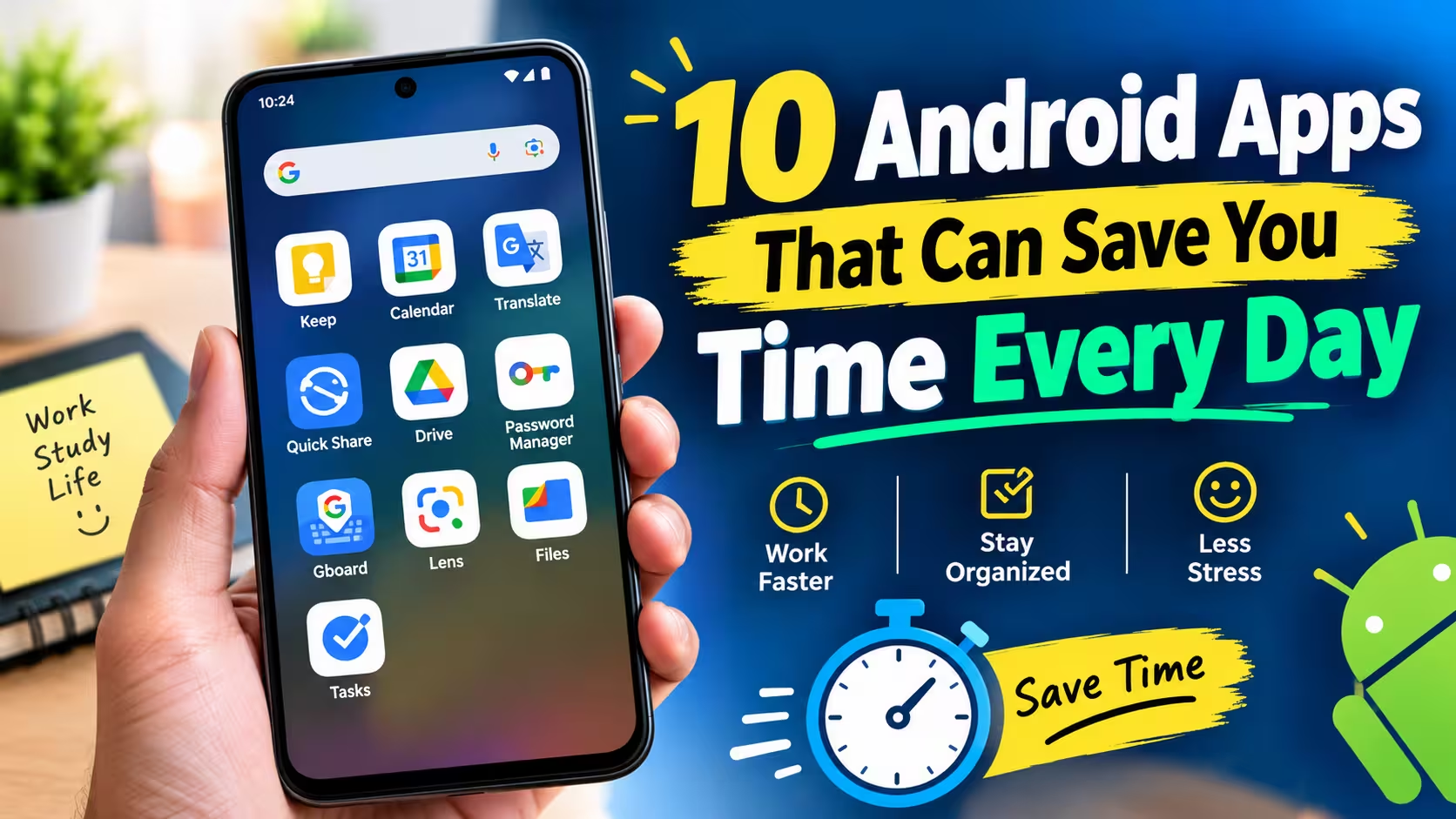
We use our phones for almost everything these days. We reply to messages, manage work, save important information, scan documents, remember appointments, share files, translate text, and even store passwords.
The problem is that many of these simple tasks can take more time than they should.
You may spend several minutes looking for an old note, manually typing information from a document, searching for a password, sending a large file through a messaging app, or trying to remember something you need to do later.
The good news is that Android already has many useful apps and features that can make these everyday tasks much faster.
You don’t need dozens of apps on your phone. In many cases, one good app or a built-in Android feature can save you several small steps every day.
In this guide, we will look at 10 Android apps and features that can save you time every day. Some are useful for students, some for office workers, and others are simply helpful for everyday phone users.
1. Google Keep – Save Ideas Before You Forget Them
How many times have you thought of something important and then forgotten it later?
Maybe you suddenly remember something you need to buy, an idea for a project, a website you want to check, or a task you need to complete.
Instead of opening a complicated notes app and creating a perfectly organized document, Google Keep lets you quickly save the information.
You can create simple text notes, checklists, reminders, and other quick notes. You can also organize notes with labels and search for them later.
For example, imagine you are travelling and suddenly remember three things you need to do when you reach home. Instead of trusting your memory, open Keep and save them immediately.
How It Saves Time
The biggest advantage is quick capture.
You don’t need to create a long document just to save one small idea. You can write it down and return to it later.
You can also use checklists for:
- Grocery shopping
- Daily tasks
- Study plans
- Packing lists
- Work assignments
- Things to buy
Google Keep also supports reminders, so you can attach a reminder to information that you don’t want to forget.
A Simple Habit
Create one note called “Quick List” and use it whenever something comes to your mind.
At the end of the day, move important items to the correct place.
This small habit can save you from repeatedly searching through WhatsApp chats, screenshots, and random notes.
2. Google Calendar – Stop Trying to Remember Everything
Your brain is not a reminder app.
If you have appointments, deadlines, meetings, classes, payments, or other important events, trying to remember everything mentally can become exhausting.
Google Calendar can help you put those commitments into one place.
But the useful part isn’t only adding events. You can also use Calendar with tasks and reminders so important work doesn’t get forgotten.
For example, instead of telling yourself:
“I need to submit this assignment on Friday.”
Create a task and give it a deadline.
You can also schedule recurring tasks for things you regularly need to do.
How It Saves Time
Without a calendar, you may repeatedly think about the same task:
“Did I forget something?”
“When is that appointment?”
“What was I supposed to do tomorrow?”
A calendar removes some of that mental work.
Best Way to Use It
Don’t put every tiny activity into your calendar.
Use it for things that have a specific time or deadline:
- College assignments
- Work meetings
- Bill payment reminders
- Important calls
- Travel plans
- Exams
- Appointments
- Recurring tasks
Once you start using it consistently, you don’t have to depend completely on memory.
3. Google Translate – Translate Text Without Typing It
Typing a paragraph into a translation app can be surprisingly slow.
That’s especially true when the text is printed on a sign, document, menu, product package, or another screen.
Google Translate can use your phone’s camera to translate text from images.
For example, if you see a document in another language, you can point the camera toward the text instead of manually typing every word.
You can also use it when travelling or reading information written in another language.
How It Saves Time
Imagine you receive a photo containing text in a language you don’t understand.
The traditional process would be:
- Read the image.
- Type the text manually.
- Copy it into a translator.
- Read the result.
With camera translation, many of these steps disappear.
Useful Situations
Google Translate can be useful for:
- Travel
- Menus
- Product labels
- Documents
- Signs
- Messages
- Study material
- Screenshots
Keep in mind that translation quality depends on the clarity of the text. Blurry, very small, or highly stylized text may not translate correctly.
4. Quick Share – Send Files Without Using Messaging Apps
Quick Share is one of those Android features many people don’t use enough.
If you need to send a photo, video, document, link, or another file to a nearby compatible device, you don’t always need to upload it to a messaging app first.
Quick Share allows you to share content with nearby compatible devices.
Why This Can Save Time
Suppose your friend needs a large video.
You could:
- Upload it to cloud storage.
- Send a link.
- Wait for the upload.
- Ask them to download it.
Or, if the devices support Quick Share and are nearby, you can share it directly.
The same idea works when moving photos from your phone to another compatible device.
Where It Is Useful
Quick Share is especially useful for:
- Sending large videos
- Sharing photos
- Moving documents
- Transferring files between your own devices
- Sending links
- Sharing files with people nearby
Before sharing, check your visibility settings so your device isn’t unnecessarily discoverable.
5. Google Drive – Scan Documents Instead of Searching for a Scanner
There was a time when scanning a document meant finding a scanner, connecting it to a computer, and saving it.
For many everyday documents, your phone can now handle the job.
Google Drive includes document-scanning functionality on supported Android devices. You can use it for things such as receipts, papers, and other documents.
How It Saves Time
Suppose someone gives you a paper document and asks you to send a digital copy.
Instead of:
- Finding a scanner
- Scanning the document
- Moving the file to your phone
- Sending it
You can scan it directly with your phone and save the digital copy.
Good Uses
Phone scanning can be useful for:
- Receipts
- Notes
- Forms
- Bills
- Study documents
- Office paperwork
For sensitive documents, be careful about where you store them and who you share them with.
6. Google Password Manager – Stop Searching for Passwords
Using the same password everywhere is convenient, but it isn’t a good security habit.
At the same time, remembering a different strong password for every website can be difficult.
That’s where a password manager can help.
Google Password Manager can save passwords and passkeys, making it easier to sign in without remembering every password manually.
How It Saves Time
Think about how often people forget passwords.
They may:
- Enter the wrong password.
- Try another password.
- Request a reset.
- Open email.
- Create a new password.
- Log in again.
That entire process can take several minutes.
A password manager reduces this repeated work.
A Better Password Habit
Use unique passwords for important accounts and let your password manager handle the remembering.
For your most important accounts, such as your main email account, use strong security features such as two-step verification when available.
And never share your saved passwords with another person.
7. Gboard – Use Voice Typing and Clipboard Features
Your keyboard isn’t only for typing letters.
If you use Gboard, you can take advantage of features that can reduce repetitive typing.
One of the most useful options is voice typing.
Instead of typing a long message with your thumbs, you can speak it when voice typing is suitable.
This can be particularly useful for:
- Long messages
- Notes
- Search queries
- Emails
- Drafting ideas
- Quick replies
The clipboard feature can also be useful when you repeatedly use the same pieces of text.
For example, if you regularly paste an email address, website name, address, or another frequently used piece of text, keeping it available in the clipboard can save repeated typing.
Why It Matters
Saving 20 seconds once doesn’t sound impressive.
But if you save 20 seconds several times every day, those small savings add up.
One Important Tip
Don’t use voice typing for sensitive information such as passwords, banking details, or private information.
For those situations, manual entry is safer.
8. Google Lens – Search or Copy Information From the Real World
Sometimes the information you need isn’t available as normal digital text.
It might be written on:
- A piece of paper
- A product
- A poster
- A book
- A sign
- A screen
Google Lens can help you interact with information through your camera.
For example, instead of manually typing a long piece of text from a printed document, you may be able to capture it and work with the recognized text.
It can also be useful when you want to identify something or quickly search for information related to what your camera sees.
A Practical Example
Imagine you see a product you like in a shop.
Instead of trying to remember the exact model name, you can use your phone’s visual tools to investigate it.
Similarly, if you see a long website address printed on a poster, using your camera can be much faster than typing it manually.
Why It Saves Time
The main benefit is reducing manual input.
Whenever your phone can recognize information for you, you don’t have to type everything yourself.
9. Google Files – Find and Manage Files Faster
Over time, your phone can become filled with screenshots, downloads, documents, videos, duplicate files, and old media.
Finding one specific file in this mess can take a lot of time.
A file manager such as Files by Google can help you organize and locate files more easily.
Instead of scrolling endlessly through folders, you can use categories and search to find what you need.
How It Saves Time
Suppose you downloaded a PDF two weeks ago but can’t remember where it went.
You could manually open different folders and search through them.
A proper file manager makes this process easier.
It can also help you identify files that you no longer need.
A Simple Organization System
Create a few basic categories:
- Documents
- Photos
- Videos
- Work
- College
- Downloads
Don’t create 50 different folders.
The goal is to make files easier to find, not to create another complicated system that you have to maintain.
Monthly Cleanup
Once a month, spend five minutes checking your Downloads folder and removing files you no longer need.
That small habit can make your phone easier to use.
10. Google Tasks – Turn “I Need to Do This” Into an Actual Reminder
There is a big difference between thinking about a task and actually scheduling it.
You might tell yourself:
“I’ll call him tomorrow.”
“I need to submit the form this evening.”
“I have to buy this next week.”
The problem is that these thoughts can easily disappear when you become busy.
Google Tasks gives you a simple place to record those tasks.
You can add dates and times so that you receive notifications when something needs your attention. Tasks with dates can also work alongside Google Calendar.
How It Saves Time
Instead of repeatedly thinking about what you need to do, write it down once.
For example:
Task: Submit college assignment
Date: Friday
Time: 6:00 PM
Now you don’t have to keep reminding yourself throughout the day.
Use Recurring Tasks
Some tasks happen regularly.
For example:
- Pay a monthly bill
- Review weekly work
- Clean your files
- Prepare for Monday
- Check important emails
For repeating activities, scheduled recurring tasks can be more useful than keeping the same information in your head.
You Don’t Need to Install All 10
The biggest mistake would be downloading every app mentioned in this article immediately.
That’s not the goal.
In fact, you may already have several of these tools on your Android phone.
Instead, identify the activities that waste the most time in your own routine.
If you forget things:
Try Google Keep or Google Tasks.
If you miss appointments:
Use Google Calendar.
If you type too much:
Try voice typing.
If you frequently transfer files:
Use Quick Share.
If you deal with paperwork:
Use document scanning.
If you constantly forget passwords:
Use a password manager.
If you deal with foreign languages:
Try Google Translate.
The best productivity setup is not the one with the most apps.
It is the one that removes unnecessary steps from your daily routine.
How to Choose Time-Saving Android Apps
Before installing an app, ask yourself three simple questions.
1. Does It Solve a Real Problem?
Don’t install an app just because it is popular.
If you don’t have a problem that the app solves, it may simply add another notification and another icon to your phone.
2. Can Android Already Do It?
This is important.
Android phones already include many useful features.
For example, you may not need a separate file-sharing application if Quick Share already handles your needs.
You may not need another password app if you’re comfortable using Google Password Manager.
And you may not need a separate notes app if Google Keep is enough for your workflow.
3. Does the App Need Unnecessary Permissions?
Always pay attention to permissions.
A simple utility app shouldn’t automatically need access to everything on your phone.
Before installing an app, check what permissions it requests and whether they make sense for its purpose.
Small Habits Can Save More Time Than New Apps
Apps can help, but your habits matter even more.
Here are a few simple changes that can make your phone more efficient.
Keep Your Home Screen Simple
Put the apps you use every day within easy reach.
Move rarely used apps away from the first screen.
Turn Off Unnecessary Notifications
Every unnecessary notification interrupts your attention.
Keep notifications for important apps and turn off the rest where possible.
Use Search Instead of Scrolling
Whether you’re looking for a file, note, contact, or app, searching is often faster than scrolling through long lists.
Save Information Immediately
If something is important, don’t tell yourself:
“I’ll remember this later.”
Save it immediately.
Review Your Tasks Once a Day
Spend a few minutes in the evening checking your notes, tasks, and calendar.
This can help you start the next day with a clearer idea of what needs to be done.
Are These Apps Useful for Students?
Absolutely.
Students can use these tools for many everyday tasks.
For example:
- Google Keep for quick study notes
- Google Calendar for exams and assignments
- Google Tasks for deadlines
- Google Drive for documents
- Google Translate for difficult words
- Google Lens for extracting information from printed material
- Gboard voice typing for quick notes
The important thing is not to turn productivity into another complicated project.
Use only the tools that actually make studying easier.
Are These Apps Useful for Work?
They can also be helpful for office and freelance work.
You can use Calendar to organize meetings, Keep to capture quick ideas, Tasks for deadlines, Quick Share for nearby file transfers, and Password Manager for faster sign-ins.
The biggest benefit comes from reducing repetitive actions.
If you perform the same small task every day, look for a way to simplify it.
Final Thoughts
You don’t need a powerful phone with hundreds of applications to become more productive.
Sometimes the biggest improvements come from simple tools that remove a few unnecessary steps from your day.
Google Keep can help you capture information quickly. Google Calendar and Google Tasks can keep deadlines from getting lost. Quick Share can make nearby file transfers easier. Google Translate can reduce the work involved in translating text. A password manager can save you from repeatedly resetting forgotten passwords.
The key is to choose tools based on your own routine.
Don’t download ten apps just because a list recommends them. Start with one or two that solve a problem you actually have.
Once you build the habit of using them, you may find that small time savings throughout the day add up to something much bigger.
Your phone doesn’t have to take more of your time. With the right tools and habits, it can actually give some of that time back.
Frequently Asked Questions
Which Android app saves the most time?
There is no single app that is best for everyone. It depends on what takes up your time. For many users, tools such as Google Keep, Google Calendar, Google Tasks, Quick Share, and Google Password Manager can remove repetitive steps from everyday activities.
Are these Android apps free?
Many of the Google tools mentioned in this article are available without a separate subscription for their basic functions. However, features, storage limits, and availability can vary depending on the app, device, account, and region.
Do I need all these apps?
No. You should only use the tools that solve a problem in your daily routine.
Can these apps make my phone faster?
These apps are mainly designed to save your time rather than increase your phone’s hardware performance. They can make certain tasks easier and reduce the number of steps you need to complete them.
Should I install third-party productivity apps?
Not necessarily. First check whether Android or an app you already have can perform the task. If you still need additional functionality, choose a reputable app and review its permissions and privacy information before installing it.
Can students use these apps?
Yes. Students can use them for notes, deadlines, documents, translation, file sharing, reminders, and other everyday study tasks.
What is the easiest way to start?
Choose one problem that repeatedly wastes your time. For example, if you keep forgetting tasks, start with Google Tasks or Calendar. If you frequently lose notes and ideas, start with Google Keep. Once that becomes part of your routine, add another tool if you actually need it.