
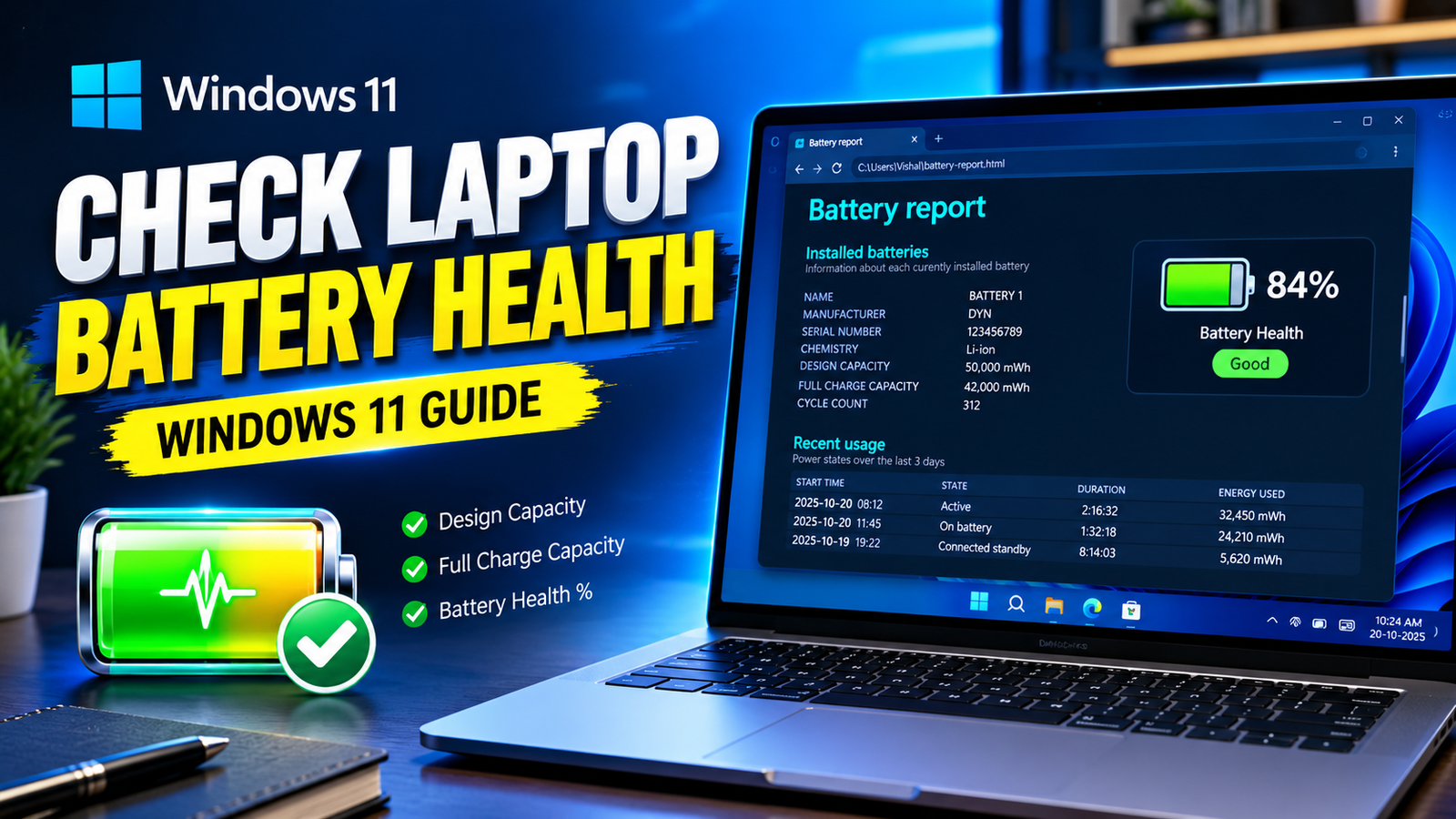
A laptop battery naturally loses some of its capacity over time. When a new laptop can run for several hours but the same laptop later needs frequent charging, battery wear may be one of the reasons.
However, short battery life does not always mean the battery is damaged. Background applications, screen brightness, power settings, and demanding tasks can also increase battery consumption.
The good news is that Windows 11 includes a built-in tool that can help you understand your laptop battery’s condition. You do not need to install a third-party application or pay for a battery health checker.
In this guide, you will learn how to generate a battery report, understand its important details, estimate your battery’s remaining capacity, and identify when further troubleshooting may be necessary.
Why Should You Check Your Laptop Battery Health?
A battery health check can help you understand whether your laptop battery has lost a significant amount of its original capacity.
For example, a battery that originally stored 50,000 mWh of energy may now hold only 40,000 mWh when fully charged. This means its current full-charge capacity is lower than its original design capacity.
Checking battery health can help you:
- Understand why your laptop runs for less time than before.
- Compare the battery’s original and current capacities.
- Decide whether to investigate software-related battery drain.
- Monitor battery wear over time.
- Make a more informed decision about battery replacement.
Remember that a battery report provides useful information, but it cannot identify every possible hardware problem.
How to Generate a Battery Report in Windows 11
Windows 11 can create an HTML battery report using a built-in command. You can open the report in your web browser and review the available battery information.
Step 1: Open Windows Terminal or Command Prompt
First, save any important work you have open.
Click the Start button on your Windows taskbar and type Terminal or Command Prompt in the search box.
Open Windows Terminal or Command Prompt. You can generally run the battery report command without administrator access, although using an administrator terminal can help avoid permission-related issues.
Step 2: Enter the Battery Report Command
Type the following command and press Enter:
powercfg /batteryreport
Windows will attempt to generate a battery report and display the location where the file has been saved.
The output may show a path similar to:
C:\Users\YourName\battery-report.html
The exact location can differ depending on the terminal’s working directory and your Windows configuration.
Step 3: Open the Report
Read the file path displayed after running the command.
Open File Explorer, navigate to that location, and double-click the HTML report. It should open in your default web browser.
If you cannot locate the report, read the full path shown in the terminal and check that folder. You can also run the command again from a familiar location, such as your user folder, to make the resulting file easier to find.
You do not need an internet connection to read the locally saved report.
How to Understand Your Laptop Battery Report
The report may contain several sections. The most useful details for a basic battery health check are usually Design Capacity and Full Charge Capacity.
1. Design Capacity
Design Capacity represents the battery’s original rated energy capacity as reported by Windows.
For example:
- Design Capacity: 50,000 mWh
This is the reference value you can compare with the battery’s current full-charge capacity.
2. Full Charge Capacity
Full Charge Capacity estimates how much energy the battery can currently store when fully charged.
For example:
- Design Capacity: 50,000 mWh
- Full Charge Capacity: 42,000 mWh
In this example, the battery’s reported full-charge capacity is lower than its original design capacity.
The difference can be caused by normal battery aging. Actual battery condition also depends on factors such as temperature, usage, charging history, and the accuracy of the battery’s reported data.
3. Battery Capacity History
Some battery reports include a capacity history section. It can show how the reported full-charge capacity has changed over time.
If the available records show a gradual decline, that may indicate normal battery aging. A sudden change does not automatically mean the battery has failed; the readings and available history may be incomplete or affected by reporting differences.
4. Recent Usage
The Recent Usage section may show when the laptop was active, connected to power, or running on battery.
This information can help you compare battery use with your daily activities. For example, if the battery drains quickly while the laptop is performing demanding tasks, power consumption may be contributing to the shorter runtime.
Some report sections may be missing or limited on certain devices.
How to Calculate Your Laptop Battery Health Percentage
You can estimate the battery’s remaining capacity by comparing Full Charge Capacity with Design Capacity.
Use this formula:
Estimated capacity percentage = (Full Charge Capacity ÷ Design Capacity) × 100
For example, suppose your battery report shows:
- Design Capacity: 50,000 mWh
- Full Charge Capacity: 40,000 mWh
The calculation is:
40,000 ÷ 50,000 × 100 = 80%
This means the battery’s reported full-charge capacity is approximately 80% of its original design capacity.
It does not mean that the battery is guaranteed to deliver exactly 80% of its original runtime. Runtime depends on power consumption, software, display settings, battery temperature, and other conditions.
What Does the Percentage Mean?
The following ranges are general guidelines for understanding capacity loss, not official Windows diagnostic thresholds.
- 90–100%: The reported capacity is relatively close to the original design capacity.
- 80–89%: Some capacity loss has occurred, which can be normal as a battery ages.
- Below 80%: The battery has lost a larger portion of its original reported capacity. Consider your actual runtime and the manufacturer’s guidance.
- Rapid or unexpected decline: Check the report again and consider professional diagnosis if the change is accompanied by unusual behavior.
A battery does not automatically need replacement when it reaches a particular percentage. If your laptop still meets your needs and works normally, you may not need to replace it immediately.
Why Does Your Laptop Battery Drain Quickly?
If the report does not show a major loss of capacity, another factor may be responsible for short battery life.
High Screen Brightness
The display can consume a significant amount of power. If you regularly use your laptop at maximum brightness, try reducing it to a comfortable level.
You can usually adjust brightness through Quick Settings or the Windows Settings app.
Background Applications
Some applications continue using CPU resources, network connections, or other hardware even when you are not actively using them.
Open Settings and look for the Power and battery section. Where available, review battery usage by application to identify software that may be consuming more power than expected.
Close unnecessary applications and check whether battery life improves.
High Performance Power Mode
A performance-focused power mode can increase energy consumption, particularly during demanding tasks.
Open Settings → System → Power & battery and look for the available power mode options. On supported devices, choosing a more power-efficient mode can help extend battery life.
Available options vary by laptop model and Windows configuration.
Heavy Applications and Gaming
Video editing, gaming, 3D applications, and other demanding programs can consume considerable power. Shorter battery life during these tasks does not necessarily indicate a damaged battery.
If you need longer runtime, reduce demanding background activity or connect the laptop to its charger when appropriate.
Connected Accessories
External drives, USB accessories, and other connected devices may draw power from the laptop.
Disconnect accessories you do not need and observe whether battery consumption changes.
How to Make Your Laptop Battery Last Longer
You cannot completely prevent battery aging, but sensible usage habits may help reduce unnecessary wear.
Avoid excessive heat. High temperatures can negatively affect lithium-ion batteries. Keep ventilation openings clear and avoid using your laptop on soft surfaces that block airflow.
Use sensible charging settings. Some laptop manufacturers provide battery conservation or charge-limit features. If your laptop supports one, check the manufacturer’s instructions to see whether it suits your routine.
Do not repeatedly drain the battery to zero. You generally do not need to fully discharge a modern laptop battery before charging it. Avoid making deep discharges a regular habit.
Install trusted system updates. Windows and manufacturer updates can sometimes improve power management or resolve software issues that affect battery usage.
Check battery usage occasionally. If runtime changes noticeably, compare the battery report and recent application usage rather than assuming the battery must be replaced.
Use the correct charger. A compatible charger helps the laptop charge as intended. If charging is unreliable, inspect the charger and charging port for obvious damage and seek professional help if necessary.
When Should You Replace a Laptop Battery?
Consider professional battery diagnosis or replacement if your laptop’s battery runtime has become unsuitable for your needs, the reported capacity has declined significantly, or the computer regularly shuts down unexpectedly despite showing remaining charge.
You should also consult the laptop manufacturer’s guidance if Windows displays a battery service warning or the laptop has charging problems that cannot be explained by software settings.
One warning is especially important: if the battery or laptop case appears swollen, stop using and charging the laptop. Do not press, puncture, or attempt to remove a swollen battery yourself. Arrange professional service as soon as possible.
Battery replacement is not necessary simply because a report shows a particular percentage. Consider the report alongside real-world performance, device age, and any manufacturer diagnostics.
Frequently Asked Questions
Can I check laptop battery health without installing software?
Yes. Windows 11 includes the powercfg /batteryreport command, which can generate a report containing battery capacity and usage information.
Does the battery report work on every Windows 11 laptop?
It works on many Windows 11 laptops with a supported battery and power-reporting implementation. The information shown may vary by manufacturer, device type, and hardware support.
What is a good laptop battery health percentage?
A capacity close to the original design capacity indicates less reported capacity loss. However, there is no single percentage that determines whether every battery is healthy or needs replacement. Actual runtime and manufacturer diagnostics also matter.
Why is my full-charge capacity different from the design capacity?
Battery capacity can decrease with age, charging cycles, temperature exposure, and usage. The values are also reported estimates, so they should be treated as useful indicators rather than perfect measurements.
Does keeping a laptop plugged in damage the battery?
Not necessarily. Many modern laptops have charging controls, and some provide battery conservation features. Heat and prolonged exposure to high charge levels can affect battery aging, so check your laptop manufacturer’s recommendations for your particular model.
Can I check the battery cycle count in Windows?
Some battery reports include cycle-count information, but it is not available on every laptop. If it is missing, check the manufacturer’s diagnostic software or support documentation for your model.
Final Thoughts
You do not need to install a separate application to get a useful overview of your laptop battery. The built-in Windows 11 battery report can show the original design capacity, current reported full-charge capacity, and other details that help you understand battery performance.
Start by running powercfg /batteryreport, open the generated HTML file, and compare the two capacity values. If your battery percentage looks reasonable but runtime is still poor, check screen brightness, background applications, and power settings before deciding that a replacement is necessary.
A little monitoring can help you understand your laptop’s condition and make a more informed decision about its battery.