
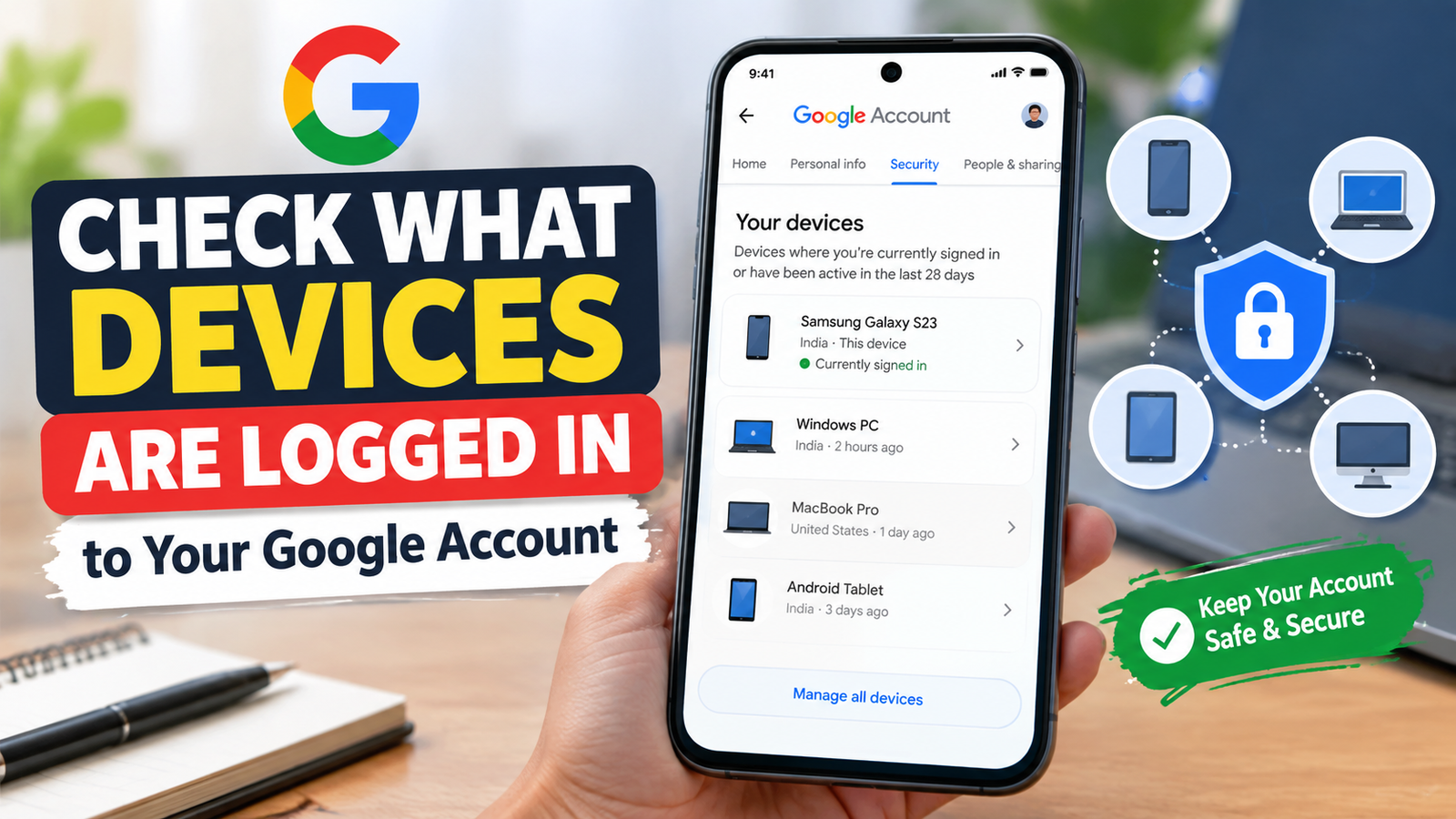
Your Google account may be connected to more devices than you remember.
You might have signed in on an old Android phone, a computer at work, a friend’s device, a tablet, or a phone that you no longer use. Sometimes, you may also forget about a device after changing your phone or reinstalling apps.
The good thing is that Google lets you check the devices where your account has recently been used. You can review the device name, approximate location, recent activity, and other available details. If you find a device you do not recognize, you can take steps to secure your account.
In this guide, you will learn how to check devices connected to your Google account, understand what the information means, remove access from an unfamiliar device, and review your account security without changing anything unnecessarily.
Why You Should Check Your Google Account Devices
Your Google account can contain a lot of personal information.
Depending on the services you use, your account may provide access to Gmail, Google Photos, Drive, Contacts, Calendar, YouTube, saved passwords, and other Google services.
If you have used the same Google account on several phones and computers over time, it can become difficult to remember every device where you signed in.
Checking your account’s device activity can help you:
- Find old phones that you no longer use
- Identify computers where you previously signed in
- Notice unfamiliar devices
- Remove access from devices you no longer have
- Review recent account activity
- Keep your account more organized and secure
This does not mean that every unfamiliar-looking device is automatically dangerous. Google may show devices or sessions in ways that are different from what you expect, so it is important to check the details before assuming something is wrong.
How to Check Devices Logged In to Your Google Account
You can check your devices from your phone or computer.
The easiest method is through your Google Account settings.
On an Android Phone
Open your phone’s Settings app.
Depending on your Android phone and software version, the exact menu names may be slightly different.
Look for Google and open it.
Then select your Google account or tap Manage your Google Account.
Go to the Security section.
Scroll down until you find the section related to Your devices.
Here, Google can show devices where your account is currently signed in or has recently been used.
Tap Manage all devices to see more details.
On a Computer
Open your Google Account in a web browser and sign in.
Go to the Security section.
Find Your devices and select Manage all devices.
You should now see a list of devices and sessions associated with your Google account.
The information available can vary depending on the device and account activity.
What Information Can You See?
When you open a device from the list, Google may show information such as:
- Device type
- Device name or model
- Recent activity
- Approximate location
- Browser or operating system information
- Whether the device is currently signed in
- Other security-related details
The exact information is not necessarily identical for every device.
For example, a phone may be displayed with its model name, while a computer session may be identified through the browser or operating system.
This is useful because the device name alone may not always tell you whether the activity is yours.
Don’t Panic If the Location Looks Different
One of the most important things to understand is that the location shown by Google may not be your exact physical location.
Google can use information such as the device’s IP address to estimate where a sign-in or activity came from.
That means the displayed city or area can sometimes be different from where you actually are.
For example, you could be using your phone in one city while the account activity appears to come from another nearby city.
This does not automatically mean someone else has accessed your account.
Before treating a device as suspicious, look at the complete information instead of relying only on the location.
Check the Device Name Carefully
Start by looking at the devices you recognize.
For example, you may see:
- Your current Android phone
- Your previous phone
- Your personal laptop
- Your office computer
- A tablet
- A smart TV or another device
If you recently replaced your phone, your old device may still appear in the account’s device list.
Similarly, if you used your Google account on a shared computer, an older session may still be visible.
Try to connect each device with something you remember doing.
What If You See a Device You Don’t Recognize?
Don’t immediately assume that your account has been hacked.
First, open the device details and look at the available information.
Ask yourself:
Have I used this type of device before?
Did I recently use a different browser or computer?
Could this be an older phone that I forgot about?
Does the recent activity match something I did?
If the device still looks unfamiliar after checking these details, treat it more seriously.
You can sign out of the unfamiliar device from your Google Account’s device-management section.
How to Sign Out of an Unfamiliar Device
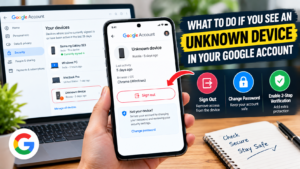
If you find a device that you do not recognize, you can use Google’s device-management page to sign it out.
Open Manage all devices from the Security section of your Google Account.
Select the device you want to review.
If Google provides a Sign out option, follow the on-screen instructions.
This can remove your Google account’s active access from that device.
However, signing out one device should not be considered the complete solution if you believe someone has accessed your account without permission.
You should also review your account security.
Change Your Password If Something Looks Wrong
If you find an unfamiliar device and have a genuine reason to believe that someone else accessed your account, changing your Google Account password is an important step.
Choose a strong password that you do not use for another website or service.
Avoid using easily guessed information such as:
- Your name
- Date of birth
- Phone number
- Simple number combinations
- Common passwords
A unique password is especially important because a password reused across multiple websites can create additional risk.
If another website suffers a password leak and you used the same password for your Google account, attackers could potentially try those credentials elsewhere.
Turn On 2-Step Verification
Two-step verification adds another security layer to your Google account.
With it enabled, knowing your password alone may not be enough to access your account.
Google supports different verification methods, depending on your account and available settings.
You can review two-step verification from your Google Account’s security settings.
If you have not enabled it yet, it is worth reviewing the available options and choosing a method that works for you.
Check Your Recent Security Activity
Your device list is only one part of account security.
Google also provides a security section where you can review important security-related activity.
Look for things you recognize and pay attention to activity that you genuinely cannot explain.
For example, you may want to review:
- Recent sign-ins
- Password changes
- Recovery information changes
- Security settings
- New devices
- Other security alerts
The purpose is not to investigate every small difference.
Instead, look for activity that does not match anything you remember doing.
Don’t Forget Your Old Phones
Old smartphones are one of the easiest devices to forget.
Suppose you used a Google account on an old phone and later purchased a new one. You may stop using the old phone but forget that your Google account was previously signed in there.
If you still have the old phone, you can remove the account from the device or perform the appropriate reset before giving it away.
If you already sold or gave away the phone, check your Google Account’s device list and sign out where appropriate.
This is particularly important when giving an old phone to another person.
What to Do Before Selling or Giving Away Your Phone
Checking your Google account is only one part of preparing an old phone for someone else.
Before handing over a device:
- Back up anything you want to keep.
- Remove your Google account from the phone.
- Remove other personal accounts where necessary.
- Transfer important photos, contacts, and files.
- Remove your personal information.
- Perform a factory reset according to the manufacturer’s instructions.
Do not simply delete a few photos and assume the phone is ready for another person.
A proper reset is a much better approach when you are permanently giving the phone away.
What If the Same Device Appears More Than Once?
You may sometimes see multiple entries that seem to represent the same phone or computer.
This can happen because Google may display different sessions or activity associated with a device.
For example, browser sessions and device activity may not always appear exactly the way you expect.
Instead of assuming that duplicate-looking entries mean multiple people are using your account, open each entry and compare the details.
Look at the activity time, device information, and other available details.
Does Seeing an Old Device Mean Someone Still Has Access?
Not necessarily.
An old device appearing in your Google Account does not automatically mean that another person is currently using it.
The important thing is to check the status and recent activity shown by Google.
If you no longer own the device and it still appears to have active access, signing it out is a sensible account-management step.
If the activity is old and there is no current access, the situation may simply reflect previous account use.
A Simple Way to Review Your Devices
You don’t need to check your Google account every day.
A quick review from time to time is enough for most people.
Use this simple process:
Open Google Account → Security → Your devices → Manage all devices
Then go through the list.
For every device, ask:
Do I recognize it?
Do I still use it?
Does the recent activity make sense?
If the answer is yes, you can leave it alone.
If you no longer use the device, consider signing out.
If you genuinely do not recognize it, investigate the details and take additional security steps if necessary.
What You Should Not Do
Avoid changing your password or removing every device simply because one location looks unusual.
That can create unnecessary problems, especially if you sign in to your Google account on many devices.
Instead, investigate the specific activity first.
You should also avoid clicking suspicious links in emails or messages that claim your Google account has been hacked.
If you receive a security warning, open your Google Account directly through a trusted route rather than relying on an unexpected link.
This helps reduce the risk of entering your password on a fake website.
A Quick Google Account Security Checklist
Use this checklist when reviewing your account:
- [ ] I recognize my current phone
- [ ] I recognize my personal computer
- [ ] I recognize my other active devices
- [ ] I checked old devices I no longer use
- [ ] I reviewed unfamiliar activity
- [ ] I signed out of devices I no longer need
- [ ] I use a unique Google Account password
- [ ] I have reviewed 2-Step Verification
- [ ] My recovery information is up to date
- [ ] I know how to access Google’s security settings
You don’t need to complete every item every time. The goal is simply to keep your account information under control.
Frequently Asked Questions
How can I see all devices logged into my Google account?
Open your Google Account, go to Security, find Your devices, and select Manage all devices. Google will show available device and session information associated with your account.
Can I remove a device from my Google account?
If a device is no longer needed or you do not recognize it, Google may provide a Sign out option from the device-management page.
Why is Google showing a location I don’t recognize?
The location may be an estimate based on network information such as an IP address. It may not represent your exact physical location.
Does an unknown device always mean my Google account was hacked?
No. An unfamiliar-looking device or location can sometimes have a normal explanation. Check the device details and recent activity before deciding that your account has been compromised.
Should I change my Google password if I see an unfamiliar device?
If you have a genuine reason to believe someone else accessed your account, changing your password is an important security step. You should also review other security settings and consider enabling 2-Step Verification.
Can I check Google account devices from my phone?
Yes. You can access your Google Account’s Security settings from an Android phone or through a web browser.
What should I do with an old phone that still appears in my account?
If you no longer use the phone, review its activity and sign it out if appropriate. If you gave the phone to someone else, make sure your personal account was removed from it.
Final Thoughts
Your Google account can remain connected to devices long after you stop thinking about them.
Taking a few minutes to review your device list can help you understand where your account is being used and clean up access to devices you no longer need.
The important thing is not to panic when you see an unfamiliar device name or location. Check the available details first, consider whether the activity could be yours, and then take action if something genuinely looks wrong.
A simple habit of reviewing Google Account → Security → Your devices occasionally, combined with a strong unique password and 2-Step Verification, can help you keep better control over your Google account.