
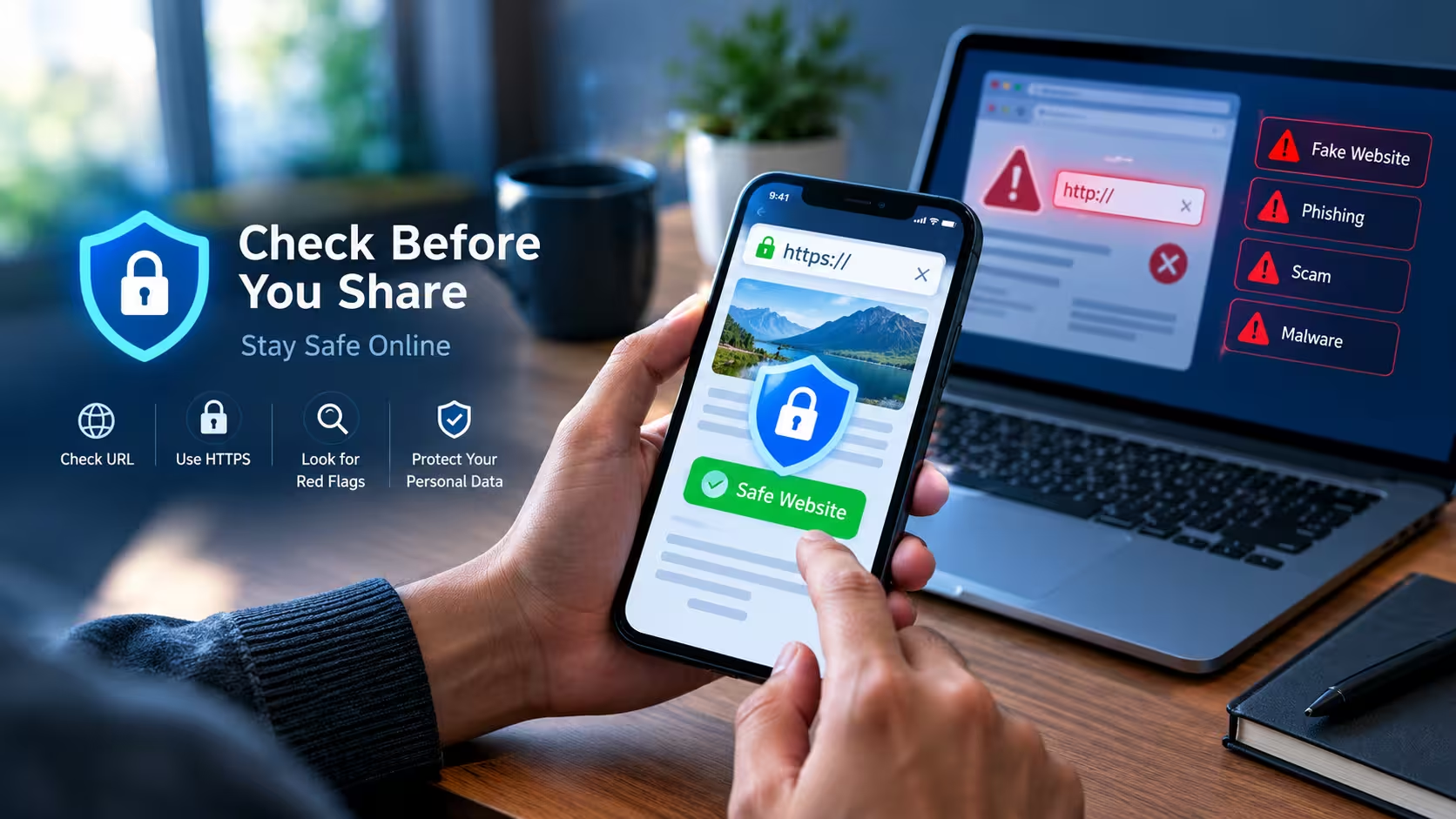
The internet makes it easy to shop, download files, create accounts, make payments, and share information. But not every website you find online is trustworthy.
Some websites are created to look like popular services, shopping stores, banks, or social media platforms. Others may try to trick visitors into downloading harmful files or entering passwords and financial information.
The good news is that you don’t need to be a cybersecurity expert to spot many warning signs.
Before entering your name, email address, phone number, password, or payment information on a website, you can perform a few simple checks.
In this guide, you’ll learn how to check whether a website is safe before sharing your personal information, what warning signs to look for, and what to do if a website doesn’t feel trustworthy.
Why You Should Check a Website Before Using It
A website can look professional and still be untrustworthy.
Scammers can copy the design of real websites, use similar logos, create convincing login pages, and advertise attractive offers.
The real question isn’t:
“Does this website look professional?”
Instead, ask:
“Can I verify that this is the website I intended to visit?”
Google Chrome’s Safe Browsing system checks websites and downloads against lists of known unsafe resources and can warn users about phishing, malware, malicious downloads, and other threats.
However, browser protection should be treated as one layer of protection—not a reason to ignore other warning signs.
1. Check the Website Address Carefully
The first thing you should check is the URL in your browser’s address bar.
Look carefully at the spelling of the domain.
For example, if you want to visit a well-known website, a scammer might create a domain that looks similar by:
- Adding extra words
- Changing a letter
- Using unusual characters
- Adding unnecessary numbers
- Using a different domain extension
- Creating a misleading subdomain
A website address can look convincing at first glance, so don’t check only the logo or page design.
Look at the Main Domain
Pay attention to the main domain name rather than only the words appearing at the beginning of the URL.
If you’re unsure, don’t click through from a suspicious message.
Instead, type the official website address yourself or find the company’s official website through a trusted source.
The Cybersecurity and Infrastructure Security Agency (CISA) recommends avoiding suspicious links and verifying where a link actually leads before using it.
2. Check Whether the Website Uses HTTPS
Look at the beginning of the website address.
A secure website normally uses:
https://
instead of:
http://
HTTPS means the connection between your browser and the website is encrypted.
However, there is an important point that many people misunderstand:
HTTPS does not automatically mean that a website is legitimate.
A scam website can also use HTTPS.
So think of HTTPS as one security check, not proof that the website itself is trustworthy.
Google’s Chrome guidance also warns that even on secure sites, users should still make sure they are visiting the correct website before entering personal information.
3. Don’t Trust the Padlock Alone
Many users believe that seeing a padlock means:
“This website is completely safe.”
That’s not necessarily true.
The padlock mainly indicates that the connection is protected.
It doesn’t tell you whether:
- The company is genuine
- The offer is legitimate
- The website belongs to the company you expect
- The seller will actually deliver your product
- The website is trying to collect unnecessary information
Therefore, check the domain name along with the connection security.
4. Check Who Operates the Website
Before giving important information to an unfamiliar website, look for basic information about the organization behind it.
Check for pages such as:
- About Us
- Contact
- Privacy Policy
- Terms and Conditions
- Refund Policy
- Shipping Policy
For an online store, you should be able to find useful information about the business and how it handles orders, payments, returns, or customer support.
A missing page doesn’t automatically prove that a website is a scam, but a complete lack of basic business information should make you more cautious.
5. Be Careful With Websites Offering Unrealistic Deals
One of the easiest ways to attract visitors is through extremely attractive offers.
For example:
- A very expensive phone for a tiny price
- A huge discount that is difficult to believe
- “Free” expensive products
- Guaranteed prizes
- Instant cash rewards
- Fake giveaways
- “You have won” messages
If an offer looks far better than what established websites normally provide, stop and verify it before entering your information.
CISA also recommends using trusted sources and verifying a website before providing personal or financial information, particularly when dealing with online offers.
6. Don’t Enter Your Password Immediately
Suppose you receive a message saying:
“Your account has been locked. Click here to verify it.”
The link takes you to a login page that looks exactly like the real service.
Don’t enter your password immediately.
First check:
- The URL
- The domain
- Where the message came from
- Whether the service actually sent the notification
- Whether you can access the account by opening the official website yourself
A safer approach is often to open the official website or app directly instead of using the link in the message.
Google also recommends avoiding suspicious webpages and messages that ask for personal or financial information.
7. Watch for “Fake Site Ahead” or Security Warnings
Your browser may warn you when it detects a potentially dangerous website.
Chrome can display warnings for websites associated with phishing, malware, unwanted software, or social engineering.
If you see a large warning such as:
“Dangerous site”
don’t simply ignore it because you need to access the page.
Google recommends not using websites that receive these dangerous-site warnings.
If you believe the warning is incorrect, investigate the website through official channels rather than immediately bypassing the warning.
8. Check the Website’s Spelling and Design
Scam websites can sometimes contain obvious mistakes.
Look for:
- Strange grammar
- Poor translations
- Random capitalization
- Broken images
- Missing sections
- Repeated content
- Strange buttons
- Poorly written policies
- Inconsistent company names
- Fake-looking reviews
One mistake alone doesn’t prove anything.
Even legitimate websites can have spelling mistakes.
But if you see multiple problems at the same time, slow down before sharing your information.
9. Be Careful With Fake Login Pages
A fake login page is designed to look like a real login screen.
It may ask for:
- Email address
- Username
- Password
- OTP
- Recovery code
- Security question
The page may even contain familiar branding.
Before entering your password, check the domain carefully.
If you arrived at the page through an email, SMS, social media message, or unexpected pop-up, consider closing it and opening the official service directly.
10. Never Share an OTP Just Because a Website Asks for It
An OTP is designed to verify access or a transaction.
If an unfamiliar website asks you for an OTP, stop.
Don’t assume that an OTP request is legitimate simply because the page looks professional.
Also be careful about sharing OTPs with people who claim to be customer support agents.
If you aren’t sure why an OTP is being requested, stop the process and contact the company through its official support channel.
11. Check the Contact Information
A trustworthy business should normally provide a way for customers to contact it.
Look for:
- Official email address
- Phone number
- Physical business information where appropriate
- Customer support page
- Help center
- Social media profiles
- Business information
Be cautious if a website only provides a random email address and no useful information about the organization.
You can also search for the company name separately rather than trusting testimonials displayed only on its own website.
12. Search for the Website or Company Before Paying
Before making a payment to an unfamiliar website, search for independent information about it.
For example, search for:
Company name + reviews
or:
Website name + scam
or:
Website name + complaints
Don’t rely on one review.
Look for patterns across multiple sources.
A few negative reviews don’t automatically mean a business is fraudulent. But repeated reports about non-delivery, unauthorized charges, fake products, or account problems deserve attention.
13. Don’t Trust Reviews on the Website Alone
A website can display its own customer reviews.
These can be useful, but they are not enough by themselves.
If every review sounds identical, overly perfect, or unusually generic, be cautious.
Look for information from independent sources as well.
The goal isn’t to find a website with zero negative reviews. Real businesses can have unhappy customers.
Instead, you’re trying to determine whether there is enough independent information to establish that the business is genuine.
14. Check What Information the Website Is Asking For
Ask yourself:
Does this website really need this information?
For example, if you’re simply downloading a free wallpaper, a website probably doesn’t need your:
- Banking information
- Government ID
- Full address
- Account password
- OTP
If a website asks for unusually sensitive information for a simple task, stop and think before continuing.
Only provide information that is genuinely necessary.
15. Be Careful With Payment Pages
Before entering card or payment information, check the website address again.
Make sure you are on the correct domain and that the payment process makes sense.
Be especially cautious if a website:
- Redirects you through several unrelated domains
- Suddenly asks for unusual information
- Uses suspicious payment instructions
- Asks you to send money directly to a personal account
- Requests payment through an unexpected method
- Creates extreme urgency
Don’t allow pressure to make the decision for you.
If something doesn’t feel right, stop the transaction and verify the seller through an official channel.
16. Avoid Downloading Files From Suspicious Websites
A website may try to convince you that your phone or computer has a problem.
For example:
“Your device has 5 viruses!”
“Click here to clean your phone.”
“Download this security app immediately.”
These messages can be deceptive.
Chrome can block dangerous downloads and warns users about files associated with malware and other unwanted software.
If a website unexpectedly tells you to download software to fix a problem, don’t rush.
Use the security tools already available on your device or download software from the official developer’s website or trusted app store.
17. Don’t Ignore Browser Download Warnings
If Chrome or your operating system warns you about a downloaded file, take the warning seriously.
This is particularly important when the file comes from an unfamiliar website.
Be cautious with files such as:
- Unknown APK files
- Unfamiliar EXE files
- Suspicious ZIP files
- Unknown browser extensions
- Cracked software
- Modified apps
- “Premium unlocked” applications
A free download isn’t worth compromising your device or accounts.
18. Be Careful With Websites Promoted Through Social Media
A website shared on Instagram, Facebook, Telegram, WhatsApp, YouTube, or another platform isn’t automatically trustworthy.
Social media posts can contain links to:
- Fake stores
- Fake giveaways
- Phishing pages
- Fake login pages
- Malicious downloads
Before using a link from social media, check where it actually leads.
If the post claims to represent a company, compare the website with the company’s official online presence.
19. Don’t Let Urgency Make the Decision for You
Scammers often create pressure.
Examples include:
“Only 5 minutes left.”
“Your account will be deleted today.”
“Payment required immediately.”
“Claim your reward before midnight.”
“Your package cannot be delivered unless you verify now.”
Urgency makes people act before they have time to verify the information.
When a website or message pressures you to act immediately, slow down.
Open the official website separately and check whether the claim is real.
20. Use Chrome’s Safe Browsing Protection
Chrome includes Google Safe Browsing protection that helps warn users about known dangerous websites, phishing attempts, malware and other threats.
Chrome provides different protection levels, including:
- Enhanced protection
- Standard protection
- No protection
Google recommends keeping some level of Safe Browsing protection enabled rather than turning it off.
You can review the setting in Chrome’s security settings.
However, remember that browser protection isn’t a replacement for checking the website yourself.
21. What If Chrome Says “Not Secure”?
If Chrome says a connection isn’t secure, don’t enter sensitive information on the page.
Google explains that an insecure connection can mean the information you send or receive isn’t protected in the same way as it would be over a secure connection.
For a simple public webpage, this may not always mean the entire site is malicious.
But if the page asks for:
- Passwords
- Card details
- Personal information
- Login information
it’s better to stop and find a secure, official alternative.
22. A Quick 60-Second Website Safety Check
You don’t need to spend 30 minutes checking every website.
For an unfamiliar website, perform this quick check.
Step 1: Check the URL
Look for spelling mistakes or unusual domains.
Step 2: Check HTTPS
Make sure the connection is secure, especially before entering sensitive information.
Step 3: Check the Website Name
Does it actually belong to the company or service you intended to visit?
Step 4: Look for Contact and Policy Pages
Check whether the website provides basic information about its organization and policies.
Step 5: Search the Company
Look for independent reviews, complaints, or reports.
Step 6: Check the Offer
If the price or reward seems unrealistic, stop and investigate.
Step 7: Check What Information Is Requested
Don’t provide information that isn’t necessary.
Step 8: Listen to Browser Warnings
If Chrome shows a dangerous-site warning, don’t ignore it.
This short process can prevent many avoidable mistakes.
23. What to Do If You Think a Website Is Fake
If you suspect a website is fake, don’t enter any more information.
Close the page and avoid downloading anything from it.
If you already entered information, the next steps depend on what you shared.
If You Entered a Password
Change the password immediately from the official website.
If you reused that password on other websites, change those passwords too.
If You Entered Banking or Card Information
Contact your bank or card provider using an official phone number or app.
Monitor your account for unusual transactions.
If You Downloaded a Suspicious File
Don’t open it again.
Use your device’s security tools to scan the file or device and follow the security provider’s recommendations.
If You Shared an OTP
Contact the relevant bank or service and check your account activity immediately.
24. The Safest Habit: Go Directly to the Official Website
When something important is involved, don’t always rely on a link someone sent you.
For example, if you receive a message saying:
“Your account needs verification.”
Instead of clicking the message link, open the official app or type the known website address yourself.
This removes one major opportunity for a fake link to take you somewhere else.
25. Website Safety Checklist
Before entering personal or payment information, use this simple checklist:
- Is the URL spelled correctly?
- Is the domain the one I expected?
- Does the site use HTTPS?
- Is the website asking for unnecessary information?
- Does the company provide contact information?
- Does the offer seem realistic?
- Are there suspicious spelling or design problems?
- Did I arrive here from an unexpected message?
- Is Chrome showing a security warning?
- Can I verify the company independently?
- Is there a safer way to access the same service?
If several answers concern you, don’t enter your information.
Final Thoughts
A website doesn’t have to look obviously fake to be risky.
Some unsafe websites are designed to look professional and may copy familiar brands, login pages, or online stores.
That’s why checking a website before entering personal information is a useful online habit.
Start with the URL. Check the domain carefully. Look for HTTPS, but don’t treat HTTPS as proof that the website is legitimate. Check the company, search for independent information, pay attention to browser warnings, and never provide unnecessary personal or financial information.
Most importantly, don’t let urgency force you into making a quick decision.
If you’re unsure about a website, stop and verify it through an official source.
Taking one extra minute before entering your information can be much better than trying to recover an account or payment problem later.
Frequently Asked Questions
How can I tell if a website is safe?
Check the website’s URL, domain name, HTTPS connection, company information, independent reputation, and browser security warnings. Also check what personal information the website is requesting.
Does HTTPS mean a website is safe?
No. HTTPS helps protect the connection between your browser and the website, but it doesn’t prove that the website itself is legitimate. Always check the domain and other warning signs.
Is a website safe if Chrome doesn’t show a warning?
Not necessarily. Chrome’s Safe Browsing protection can warn you about known or suspected threats, but the absence of a warning isn’t a guarantee that a website is trustworthy.
What should I do if Chrome says “Dangerous site”?
Don’t enter personal information or download files from the website. Close the page and verify the service through its official website or app. Google recommends not using sites that receive dangerous-site warnings.
How can I check whether an online store is legitimate?
Check the domain, company information, contact details, refund policy, independent reviews and complaints. Be particularly careful with prices or offers that seem unrealistic.
Should I trust links received through WhatsApp or social media?
Don’t automatically trust them. Check the destination URL before opening it and verify important services by visiting their official website or app directly.
What information should I never enter on a suspicious website?
Never enter passwords, OTPs, banking credentials, card details, recovery codes or other sensitive information on a website you haven’t verified.
Is a padlock icon enough to trust a website?
No. A padlock generally indicates a secure connection, not that the company or website is genuine. Check the actual domain name and other signs of legitimacy.
What should I do if I accidentally entered my password on a fake website?
Change the password immediately from the official website. If you used the same password elsewhere, change it there too. Enable two-factor authentication where available.
Can a fake website look exactly like a real website?
Yes. Phishing websites can imitate legitimate services and use similar designs, logos and login forms. Always check the actual domain instead of relying only on the appearance of the page.