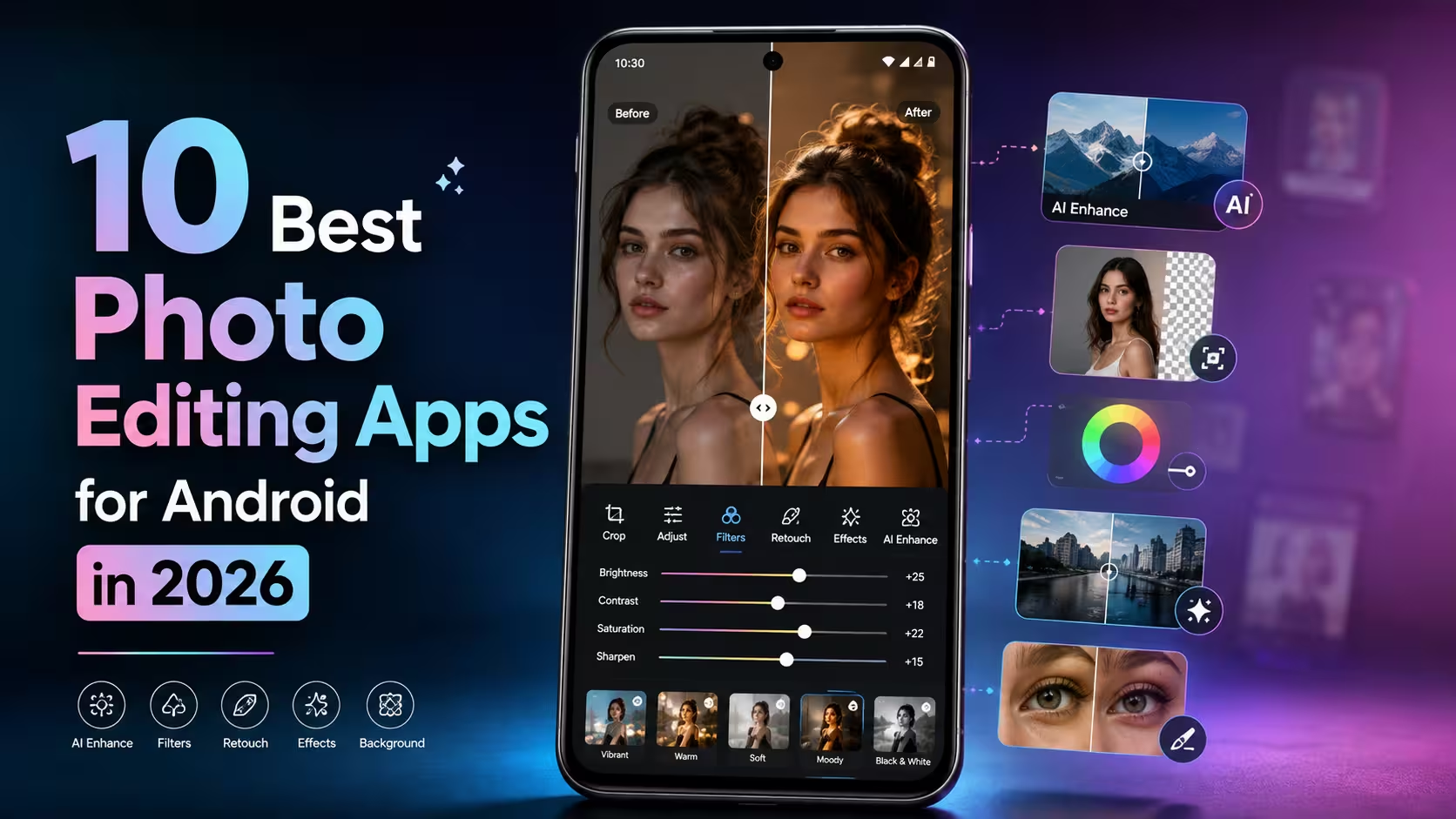
Taking a good photo is only half the job. The right editing can make an ordinary picture look cleaner, brighter, sharper, and much more attractive. Fortunately, you no longer need a computer or expensive editing software to do that. A good Android phone and the right photo editing app can be enough for most everyday edits.
The difficult part is choosing the right app.
There are hundreds of photo editors on the Google Play Store, and they are not all designed for the same purpose. Some are better for professional color correction, while others are made for quick social media edits. Some focus on AI tools, background removal, or object removal, while others are better for filters, portraits, collages, or graphic design.
To make the choice easier, we have put together this list of the 10 best photo editing apps for Android in 2026. Instead of simply ranking apps by popularity, we are looking at what each one is actually good at, who should use it, its main strengths and limitations, and whether it is worth trying.
The features and availability of some tools can vary by device, region, app version, or subscription plan. It is therefore a good idea to check the current Google Play listing and the app itself before relying on a specific premium feature.
Quick Comparison: Best Photo Editing Apps for Android
| App | Best For | Free Version | AI Tools | Best Feature |
|---|---|---|---|---|
| Snapseed | Advanced free editing | Yes | Some | Professional editing tools |
| Adobe Lightroom | Photo correction & color | Yes | Yes | Powerful color controls |
| Picsart | Creative & AI edits | Yes | Yes | Effects and creative tools |
| Canva | Social media & designs | Yes | Yes | Templates and easy design |
| PhotoRoom | Background & product photos | Yes | Yes | Background removal |
| VSCO | Filters & photography | Yes | Yes | Film-style looks |
| Polish | Quick edits & portraits | Yes | Yes | Easy AI enhancement |
| Pixlr | Creative effects | Yes | Yes | Effects and AI tools |
| YouCam Perfect | Selfies & portraits | Yes | Yes | Beauty and AI editing |
| Google Photos | Simple everyday edits | Yes | Yes* | Quick photo improvements |
*Feature availability can vary by device and account.
1. Snapseed
If you want a powerful photo editor without paying for a subscription, Snapseed is one of the first apps worth trying.
Developed by Google, Snapseed is designed for users who want more control than a basic phone gallery editor provides. Its current Google Play listing includes more than 30 professional tools and filters, along with features such as RAW editing, smart masking, lens blur, tonal contrast, dehaze, and non-destructive editing.
One of the biggest advantages of Snapseed is that it does not feel like a simple filter app. You can make precise adjustments to brightness, contrast, saturation, white balance, curves, details, and other aspects of an image.
It is also useful for selective editing. Instead of changing the entire picture, you can work on specific areas when the tool supports it.
Best features of Snapseed
- 30+ editing tools and filters
- RAW photo support
- Smart masking
- Lens Blur
- Dehaze
- Curves and color adjustments
- Selective editing
- Non-destructive editing
- No subscription requirement listed by Google Play
- No ads or watermarks listed by Google Play
Who should use Snapseed?
Snapseed is ideal for beginners who want to learn proper photo editing as well as experienced users who want a capable mobile editor without being pushed toward a subscription.
It is especially good for landscape photos, portraits, street photography, travel pictures, and general color correction.
The downside
Snapseed has a lot of tools, so it can feel slightly overwhelming when you first open it. It is more focused on photo editing than ready-made social media templates.
Best for: Users who want powerful editing tools for free.
2. Adobe Lightroom
Adobe Lightroom is one of the strongest choices for photographers and users who want detailed control over color and lighting.
The Android version combines traditional photo editing controls with newer AI-powered features. Its current Google Play listing highlights tools such as Quick Actions, Adaptive Presets, film-style presets, AI editing, Generative Remove, and video editing.
Lightroom is particularly good when you want a photo to look polished without making it look heavily edited.
For example, you can adjust exposure, highlights, shadows, white balance, contrast, colors, and other settings to create a consistent look across multiple photos.
Its preset system is also useful. Instead of manually adjusting every image, you can apply a particular look and then fine-tune it.
Best features of Lightroom
- Advanced exposure and color controls
- RAW editing
- Presets
- AI-powered editing tools
- Generative Remove
- Quick Actions
- Adaptive Presets
- Photo and video editing
Who should use Lightroom?
Lightroom is a good choice for photographers, content creators, and anyone who wants professional-looking color correction.
It is also a strong option if you take photos regularly and want a consistent editing style.
The downside
Lightroom offers a lot of control, but some features are tied to Adobe’s premium plans. Beginners may also need some time to understand the different editing tools.
Best for: Photography, professional color correction, and creators.
3. Picsart
If your idea of photo editing includes creative effects, stickers, collages, background changes, AI tools, and social media content, Picsart is worth considering.
Picsart is more than a traditional photo editor. Its current Android listing describes it as an all-in-one AI photo editor, video editor, and design studio. It includes tools for background removal, object removal, AI effects, filters, retouching, templates, collages, and other creative edits.
This makes Picsart particularly attractive to people who want to experiment with their photos instead of simply correcting exposure or color.
You can create profile pictures, social media posts, creative portraits, collages, and other visual content from your phone.
Best features of Picsart
- AI photo editing
- Background remover
- Object remover
- Creative effects
- Filters
- Retouching tools
- Collage maker
- Templates
- AI-generated creative tools
Who should use Picsart?
Picsart is a good choice for social media users, creators, students, and anyone who enjoys creative photo editing.
If you want to turn a normal picture into something more eye-catching, Picsart gives you plenty of options.
The downside
The app contains ads and in-app purchases, and some advanced tools are part of its paid offering. The large number of options can also make the interface feel busy.
Best for: Creative edits, social media content, and AI-powered photo manipulation.
4. Canva
Most people know Canva as a graphic design platform, but its Android app has also become a useful photo editor.
Canva is especially useful when your final goal is not just an edited photograph but a complete design. You can edit an image, add text, create a collage, make a social media post, design a thumbnail, or create other visual content from the same app.
The current Google Play listing includes photo editing, AI tools, background removal, object removal, templates, collages, social media designs, and other creative tools.
Best features of Canva
- Easy photo editing
- Background removal
- Object removal
- AI image tools
- Templates
- Text and graphic elements
- Collage creation
- Social media designs
- Posters and thumbnails
Who should use Canva?
Canva is particularly useful for bloggers, students, small businesses, social media creators, and people who regularly create posts or thumbnails.
For example, if you want to edit a photo and then turn it into an Instagram post with text, Canva can handle both tasks without requiring another app.
The downside
Canva is not designed to replace a dedicated professional photo editor for advanced color grading. Some templates, assets, and premium features require a paid plan.
Best for: Social media posts, thumbnails, graphic design, and simple photo editing.
5. PhotoRoom
If you regularly remove backgrounds or create product photos, PhotoRoom deserves a place on this list.
PhotoRoom is designed around creating clean, professional-looking visuals from ordinary photographs. Its Android listing highlights background removal and replacement, batch editing, AI-generated product visuals, resizing, and other tools aimed particularly at e-commerce and product photography.
This makes it different from apps such as Lightroom or Snapseed.
For example, imagine you have photographed a product on a messy table. Instead of manually selecting the object and removing the background, PhotoRoom can automate much of that process.
Best features of PhotoRoom
- Automatic background removal
- Background replacement
- Product photo editing
- Batch editing
- AI-generated backgrounds
- Resize tools
- AI shadows
- E-commerce-focused features
Who should use PhotoRoom?
It is particularly useful for online sellers, small businesses, marketplace listings, social media creators, and anyone who frequently needs clean product images.
It can also be useful for creating profile pictures and other images where you want to separate the subject from the background.
The downside
Some advanced features require in-app purchases. If you only need basic brightness, contrast, and color adjustments, PhotoRoom may offer more tools than you actually need.
Best for: Product photography and background removal.
6. VSCO
If you prefer a clean photographic style rather than heavy effects, VSCO is another app worth trying.
VSCO has built a reputation around filters, presets, and photography-focused editing. Its Android listing describes it as an app with advanced photo and video editing tools for creators, along with a photography community.
The main attraction is its approach to creating a consistent visual style.
Instead of adding dozens of dramatic effects, you can use presets and editing controls to give your photos a particular mood.
It works especially well for travel photos, lifestyle photography, portraits, and social media feeds where you want multiple images to have a similar appearance.
Best features of VSCO
- Photography-focused editing
- Film-inspired presets
- Filters
- Photo and video editing
- Creative tools
- Consistent visual styles
- Photography community
Who should use VSCO?
VSCO is a good choice for photographers and creators who care about aesthetics and want their images to have a consistent look.
The downside
The free experience is more limited than some other apps, and many advanced tools and presets are part of the paid membership.
Best for: Film-style edits, presets, and photography.
7. Polish Photo Editor
If you want a simple photo editor with a mixture of traditional editing and AI features, Polish is worth checking out.
The app’s current Google Play listing describes tools for AI enhancement, background and object removal, portrait retouching, filters, collages, and other everyday editing tasks. It also promotes high-resolution export without watermarks.
Polish is designed to make editing approachable. You do not need to understand advanced curves or detailed color grading to make a noticeable improvement to a picture.
Best features of Polish
- AI photo enhancement
- Object removal
- Background removal
- Portrait retouching
- Filters
- Collages
- Text and stickers
- High-resolution export
Who should use Polish?
It is a good choice for people who want quick edits for Instagram, WhatsApp, profile pictures, or everyday photos.
It can also be useful if you want AI-based improvements without learning a complicated professional editor.
The downside
The app contains ads and in-app purchases. Some AI tools may also have usage limits depending on the current plan.
Best for: Quick edits, portraits, and beginner-friendly AI tools.
8. Pixlr
Pixlr is another flexible option for users who like experimenting with effects and creative edits.
Its Android listing describes Pixlr as an AI-powered photo editor with effects, overlays, filters, and newer AI tools such as Generative Fill.
The app is useful when you want something between a basic mobile editor and a more creative design tool.
You can make quick adjustments, apply effects, combine visual elements, and experiment with different styles.
Best features of Pixlr
- AI photo editing
- Generative Fill
- Filters
- Overlays
- Creative effects
- Collage tools
- Quick editing controls
Who should use Pixlr?
Pixlr is suitable for casual users, creators, and anyone who enjoys experimenting with different visual effects.
It can also be a useful option when you want more creative freedom than a basic gallery editor provides.
The downside
The app includes ads and in-app purchases, and some users may find the number of creative options unnecessary for simple editing.
Best for: Creative effects and AI-powered edits.
9. YouCam Perfect
For selfies, portraits, and beauty-focused editing, YouCam Perfect is a popular option.
The current Android listing includes AI enhancement, object removal, background removal, face retouching, collage tools, AI avatars, filters, and other portrait-focused features. The listing also says the app has more than 800 million downloads.
The app is designed for users who want to improve portraits quickly.
For example, you can make small retouching adjustments, remove unwanted objects, improve image quality, or apply creative effects.
Best features of YouCam Perfect
- AI photo enhancement
- Object removal
- Background removal
- Face retouching
- AI avatars
- Filters
- Collage maker
- Portrait effects
Who should use YouCam Perfect?
It is especially useful for selfie lovers, social media users, and people who regularly edit portraits.
The downside
The app includes ads and in-app purchases. Beauty editing should also be used carefully. Heavy retouching can make a portrait look unnatural, so subtle adjustments usually produce better results.
Best for: Selfies, portraits, and beauty editing.
10. Google Photos
You may already have Google Photos installed on your Android phone, but many users do not use its editing tools beyond basic cropping.
Google Photos can be a convenient choice when you simply want to make quick improvements without installing another dedicated editor.
It is particularly useful for basic adjustments, cropping, rotating, filters, and other everyday edits. Depending on your device and account, Google Photos can also offer more advanced editing tools.
The biggest advantage is convenience. Your photos are already inside the app, so you can edit them immediately.
Best features
- Quick edits
- Crop and rotate
- Filters
- Light and color adjustments
- Easy organization
- Simple sharing
- Integration with your photo library
Who should use Google Photos?
It is ideal for people who do not want a separate editing application and mainly need simple improvements.
If you only want to brighten a dark image, crop a picture, or make a quick adjustment before sharing it, you may not need a more advanced editor.
The downside
It does not offer the same depth of dedicated editing controls as Lightroom or Snapseed.
Best for: Quick and simple everyday photo edits.
Which Photo Editing App Is Best for You?
There is no single photo editing app that is perfect for everyone.
The best choice depends on what you actually want to do.
Best free photo editor: Snapseed
If your priority is getting a large collection of serious editing tools without a subscription, Snapseed is one of the strongest choices. Its current Play Store listing specifically highlights 30+ tools and filters without subscriptions, ads, or watermarks.
Best for professional photo editing: Lightroom
For photographers who care about color, exposure, RAW files, presets, and more detailed adjustments, Lightroom is a better fit.
Best for creative edits: Picsart
If you enjoy AI effects, background changes, object removal, stickers, collages, and creative designs, Picsart offers a broad toolkit.
Best for social media: Canva
If editing a photo is only part of your workflow and you also need text, templates, posts, thumbnails, or other designs, Canva is particularly convenient.
Best for product photos: PhotoRoom
For online sellers and businesses, PhotoRoom’s background removal, product-focused editing, and batch tools make it one of the most specialized choices on this list.
Best for filters: VSCO
If your main goal is creating a consistent photographic style with presets and film-inspired looks, VSCO is worth considering.
Best for quick AI edits: Polish
Polish is a good option for users who want fast enhancement, retouching, background removal, and other AI-assisted tools without dealing with a complicated interface.
Best for selfies: YouCam Perfect
For portrait and beauty editing, YouCam Perfect provides a large collection of relevant tools.
Free vs Paid Photo Editing Apps: Which Should You Choose?
You do not necessarily need to pay for a photo editing app.
Several apps on this list provide useful free tools, but the amount of free functionality varies considerably.
A free app is usually enough if you only need:
- Cropping
- Brightness adjustments
- Contrast
- Basic filters
- Simple retouching
- Basic background removal
- Simple social media designs
A paid plan may make sense if you regularly need:
- Advanced AI tools
- Premium presets
- Large template libraries
- Batch processing
- Advanced background replacement
- Professional workflows
- Cloud-based features
- More export options
Before subscribing, try the free version first. You may discover that it already provides everything you need.
Also pay attention to free trials and subscription terms. If you start a trial through Google Play, check the renewal conditions so you are not surprised by a future charge.
What Should You Look for in a Photo Editing App?
Choosing an app based only on its rating or download count is not always the best approach.
Instead, think about your own editing needs.
1. Editing Controls
If you want to learn photography, choose an app that provides proper controls for exposure, color, highlights, shadows, white balance, and detail.
2. AI Features
AI can make difficult tasks much faster, especially background removal, object removal, enhancement, and creative generation.
However, AI results are not always perfect. Always check the final image for strange edges, distorted objects, or unnatural details.
3. Export Quality
A good editor should allow you to save images at a suitable resolution.
If you plan to print a photo or upload it to a website, avoid unnecessarily exporting at a very low quality.
4. Watermarks
Some free editing apps add watermarks to exported images. If you do not want one, check the export screen before doing extensive editing.
5. Ads and Subscriptions
Free apps often use advertising or premium subscriptions. That is not necessarily a problem, but you should know what you are getting before editing your photos.
6. Privacy
Photo editing apps may require access to photos and videos, and some cloud or AI-based tools may process images on remote servers.
Before uploading sensitive photographs, check the app’s privacy information and permissions.
This is especially important for personal documents, private family photos, and images containing sensitive information.
Tips for Getting Better Results From Any Photo Editing App
Even the best editing app cannot completely fix a poor photograph.
A few simple editing habits can make a big difference.
Start with a good original
Whenever possible, edit the original high-quality photo instead of a screenshot or heavily compressed copy.
Do not over-edit
Increasing saturation, sharpening, or skin smoothing too much can quickly make a photo look artificial.
Small adjustments often produce more realistic results.
Fix light before color
If a photo is too dark or too bright, correct exposure and highlights first. Then work on colors and filters.
Use filters carefully
A filter should support the photograph rather than completely change it.
If you apply a strong filter, reduce its intensity when possible.
Check the image at 100%
Before exporting, zoom in and look for strange edges, unwanted artifacts, or AI-generated mistakes.
This is especially important when using object removal or background replacement tools.
Frequently Asked Questions
Which is the best photo editing app for Android in 2026?
There is no single best app for everyone. Snapseed is an excellent choice for powerful free editing, Lightroom is better for detailed photography and color correction, Picsart is strong for creative and AI edits, Canva is useful for social media designs, and PhotoRoom is particularly good for product images.
Which photo editing app is completely free?
Snapseed currently stands out because its Google Play listing says it offers 30+ tools and filters without subscriptions, purchases, ads, or watermarks.
Other apps offer free versions but also provide optional paid features or in-app purchases.
Which app is best for professional photo editing on Android?
Adobe Lightroom is one of the strongest choices for users who want detailed control over exposure, color, presets, RAW files, and professional workflows.
Snapseed is another excellent option, particularly if you want a free editor.
Which photo editing app is best for removing backgrounds?
PhotoRoom is one of the strongest choices for background removal, especially for product photography and e-commerce images. Canva and Picsart also provide background-removal tools.
Which app is best for editing selfies?
YouCam Perfect is particularly focused on selfies and portraits, with tools for retouching, enhancement, object removal, filters, and AI-powered editing.
Picsart and Polish are also useful alternatives.
Are free photo editing apps safe?
A photo editing app can be useful and legitimate, but you should still check its developer, permissions, privacy information, reviews, and official download source.
The safest approach is to download apps from the Google Play Store rather than unknown websites offering modified APK files.
Can I edit RAW photos on Android?
Yes. Some Android photo editors support RAW files. For example, Snapseed currently lists RAW support, while Lightroom is also designed for more advanced photography workflows.
RAW support can vary depending on the phone and file format.
Do photo editing apps reduce image quality?
They can, depending on export settings and the way the image is processed.
For the best results, keep the original photo, avoid repeatedly saving and re-editing compressed files, and choose an appropriate export resolution and quality.
Which photo editing app is best for Instagram posts?
Canva is a strong choice when you need to combine photos with text, templates, graphics, and other design elements. Picsart is another good option if you prefer more creative effects and AI editing.
Should I install several photo editing apps?
You can, but you probably do not need ten apps on your phone.
A better approach is to choose one main editor and one specialized app if necessary. For example, you could use Lightroom for photography and PhotoRoom for product backgrounds, or Snapseed for general editing and Canva for social media designs.
Final Verdict
The best photo editing app is not necessarily the one with the most features. It is the one that fits your editing style.
For users who want a powerful free editor, Snapseed is an excellent starting point. For photographers who want detailed color and lighting controls, Adobe Lightroom is a better choice. Picsart is ideal for creative and AI-powered edits, while Canva works particularly well for social media graphics and designs.
If you sell products online, PhotoRoom can save a lot of time with background and product-image editing. VSCO is a good option for people who love film-inspired looks, while Polish and YouCam Perfect are useful for quick AI and portrait edits. Pixlr is another flexible option for creative editing, and Google Photos remains convenient for simple everyday adjustments.
The good news is that you do not have to choose based only on this list. Most of these apps offer some form of free access, so you can try the workflow that suits you before deciding whether you need premium tools.
For most Android users, starting with Snapseed is a sensible choice. If you later need more advanced color grading, AI tools, templates, or specialized background editing, you can add another app that matches your specific needs.
Last updated: August 2026
App features, pricing, availability, and subscription options can change over time. Always check the current Google Play listing and the developer’s official information before installing or subscribing to an app.
Disclosure: This article is an independent editorial guide. App names and trademarks belong to their respective owners. We are not affiliated with or endorsed by the developers mentioned above.